|
|
|
|
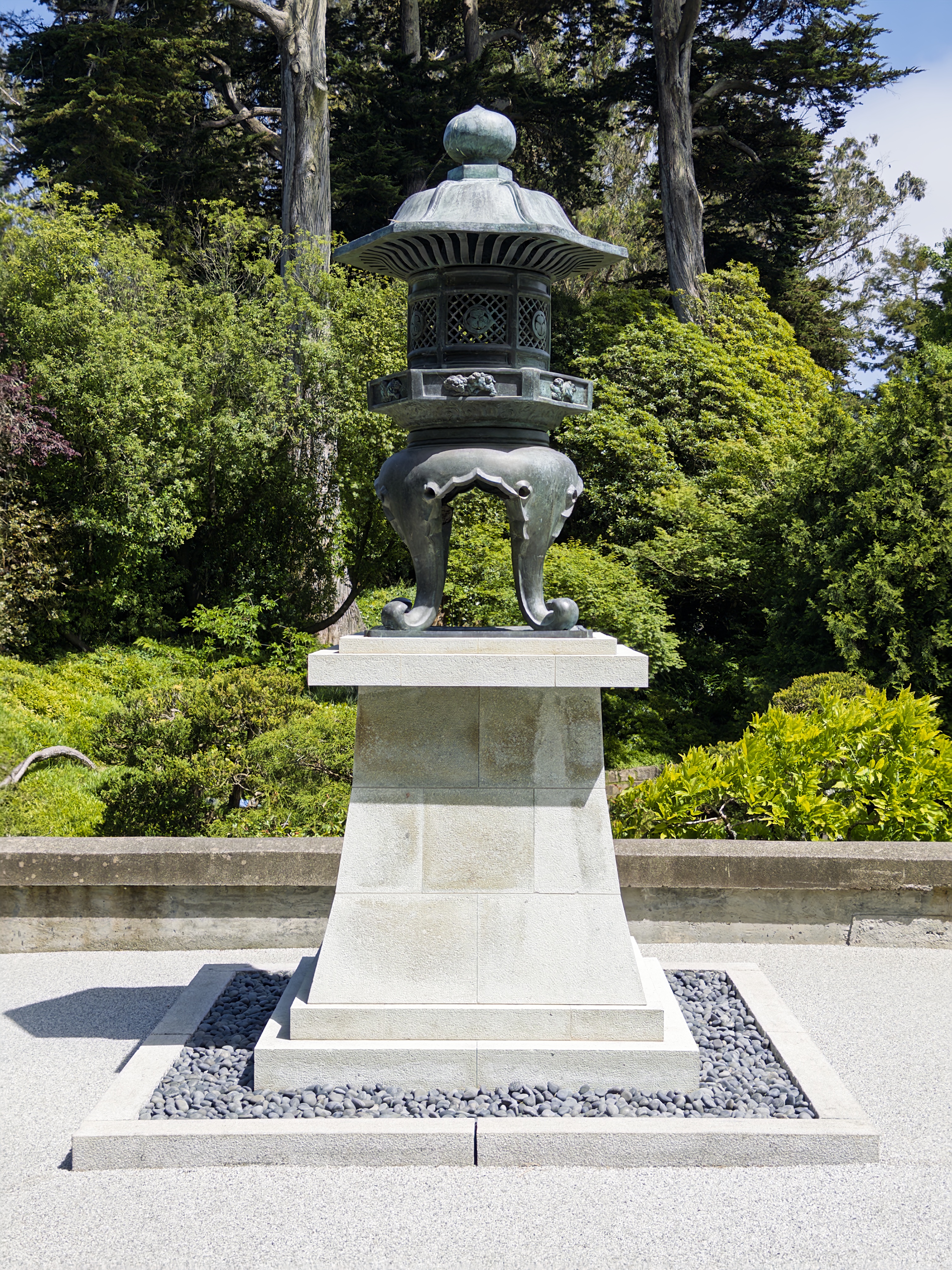
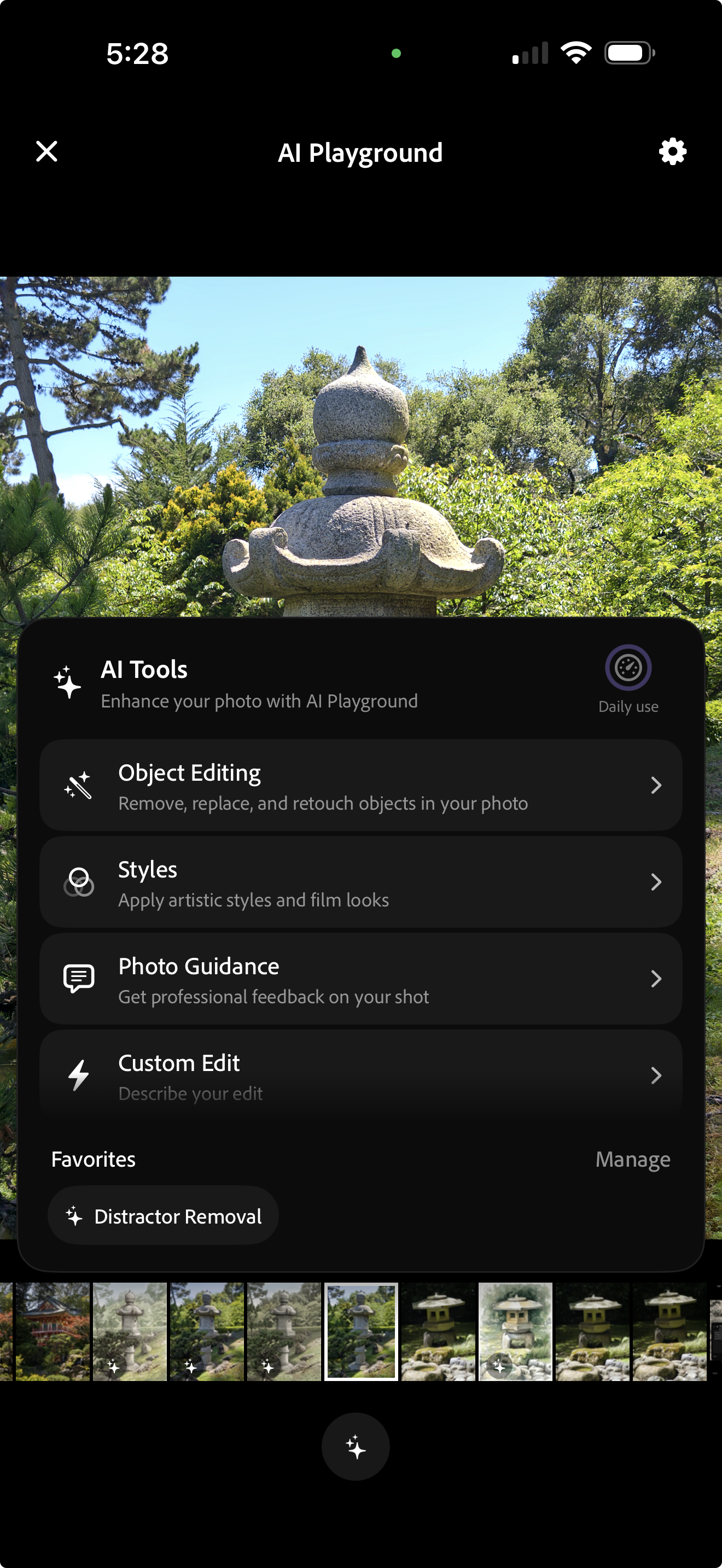
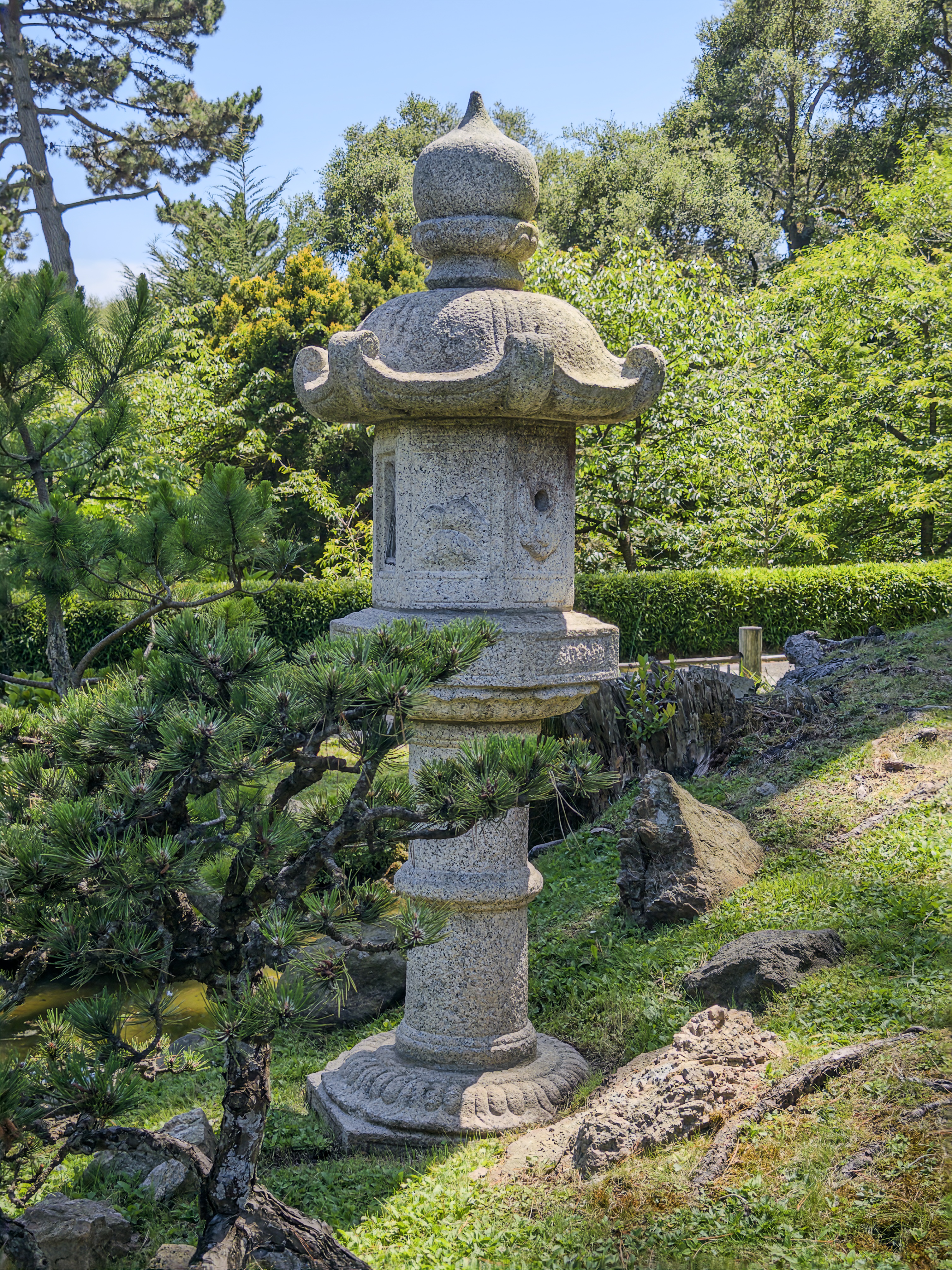
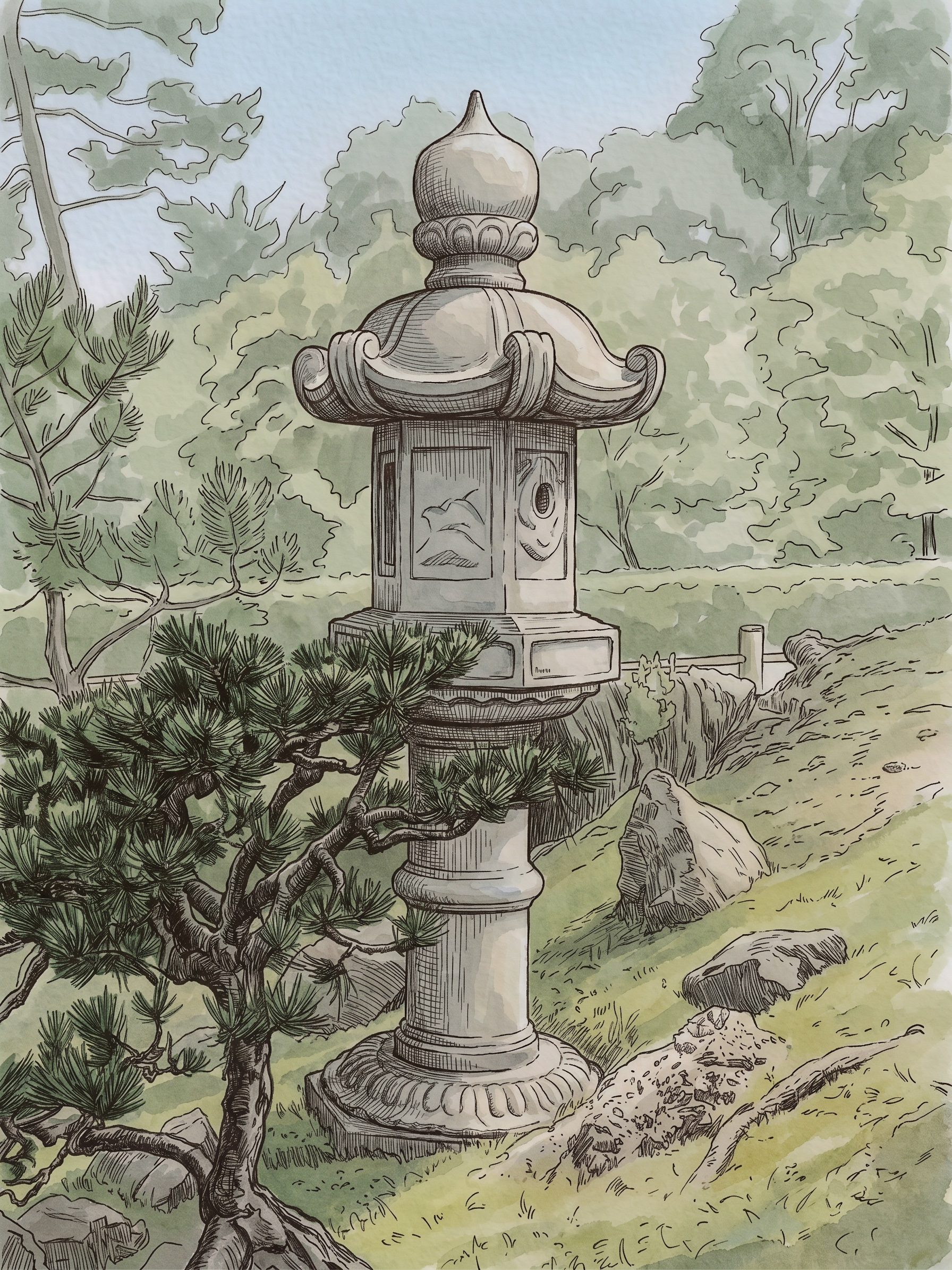
At left is the user interface of our Playground, running on an iPhone 17 Pro Max. At center is a snapshot of a stone lantern captured by Indigo. At right is the result of tapping on "Object Editing" -> "Depth of field" to defocus the background, then "Styles" -> "Ink line with color wash", converting the photograph to an illustration with a soft background. |
||
One year ago, Adobe's Nextcam Team launched an experimental camera app called Project Indigo. The app offers full manual controls, a natural (SLR-like) look, and the highest image quality that computational photography can provide - in both JPEG and raw formats. It also introduced some new photographic experiences not available in other camera apps, like the ability to remove reflections when photographing through windows.
In the intervening year, text-based image generation has improved markedly, and leading GenAI models now offer the ability to edit images, not just generate them from scratch. That said, it’s still early days for generative image editing. Text is an awkward way to control such an editor. Even the most precise prompt is ambiguous - depending on assumptions, context, and cultural background. As a result, prompt-driven GenAI models seldom do exactly what you want, requiring multiple throws of the dice to get a good result. In addition, the workflow can be complex, often requiring users to transfer photos from a camera app to a web site or GenAI-powered editing app. This means that it’s hard to edit photos in the moment, i.e. while you’re still looking at the scene.
The Nextcam team at Adobe has been exploring solutions to these problems, and we’re excited to announce an experimental AI Playground inside the Indigo camera app. Our goal is to explore how generative AI can assist mobile photographers at the point of capture. Our initial version offers buttons for removing distractors, adding a shallow depth of field, applying photographic and artistic styles, changing the lighting, and many other functions. It also provides buttons that return a critique of your photo, including suggestions for reshooting or editing. The former only makes sense in a camera app, where you are still standing in front of the scene. Finally, it includes a Custom Edit button, which lets you enter an arbitrary text prompt.
How to use the AI Playground
Since Indigo is an experimental app, and this is an experiment inside Indigo, we’re offering the AI Playground for free, with no sign-on required. However, this level of free access will be available only to a few percent of our users, and only for a few weeks. Our goal is to learn how people use GenAI-powered editing. Depending on its success we may extend the experiment, or expand the user pool, or run follow-on experiments. If the feature proves popular, we will eventually offer a paid version.
When you update to Project Indigo version 1.1 and re-launch the app, you may see a splash screen announcing the availability of AI Playground. If so, then you are being invited to participate in our experiment. To take part, you must agree to share with us your button presses while using the Playground. But we won't look at your prompts, or images, or upload them to our servers, or use them to train AI models, and since there's no sign-on, the analytics we gather are anonymous. If you prefer not to participate in the experiment, there's a button for declining; you can then continue using the app as before.
To use the Playground, after capturing a photo and reviewing it with Indigo's built-in filmstrip (or full-screen grid), press the sparkle button at the bottom of the screen. (Look for the stars.) We restrict the Playground to photos captured using our app, so if the sparkle button is grayed out, it means this is not an Indigo photograph.
The Playground contains four sections: Object Editing, Styles, Photo Guidance, and Custom Edit. Each section contains multiple buttons or toggles, which trigger GenAI with prompts we have engineered for them. If you don't like what you get, press the button again; you'll typically get something slightly different. If none of the buttons do what you want, use the Custom Edit section to type, edit, save, and delete custom prompts. By the way, you can dictate instead of typing; it's faster, and GenAI's large language models overlook most transcription errors.
Applying styles
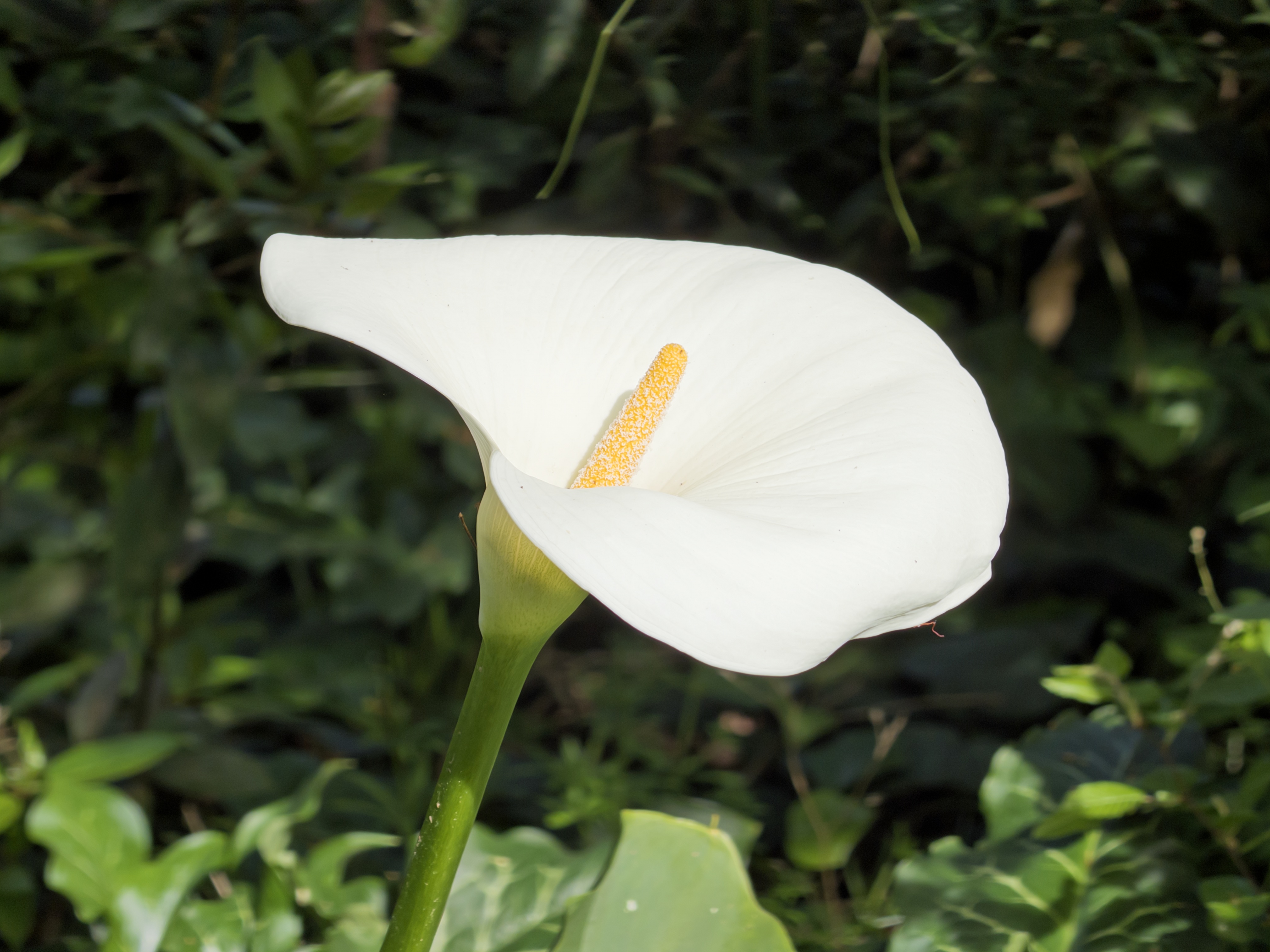
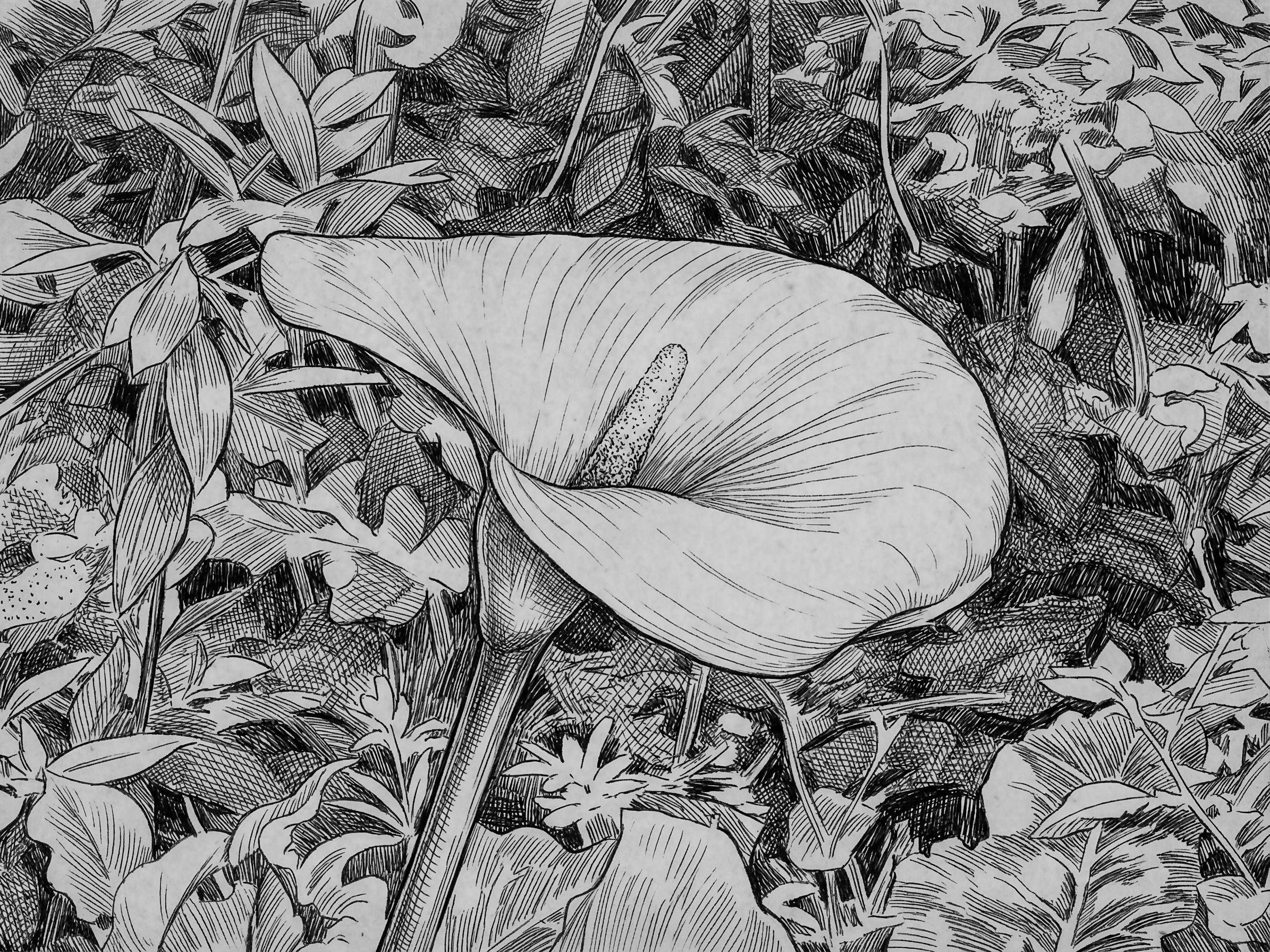
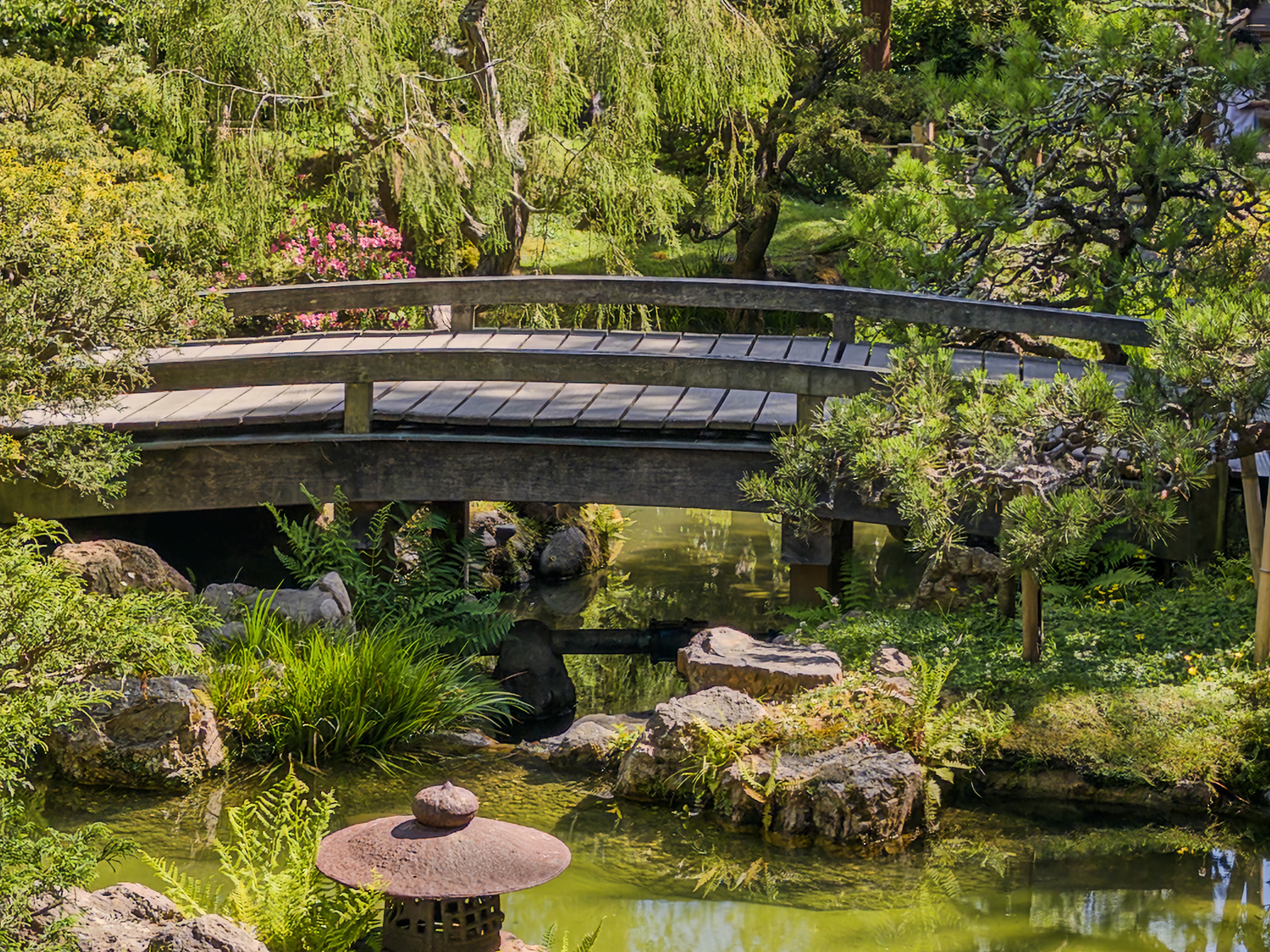
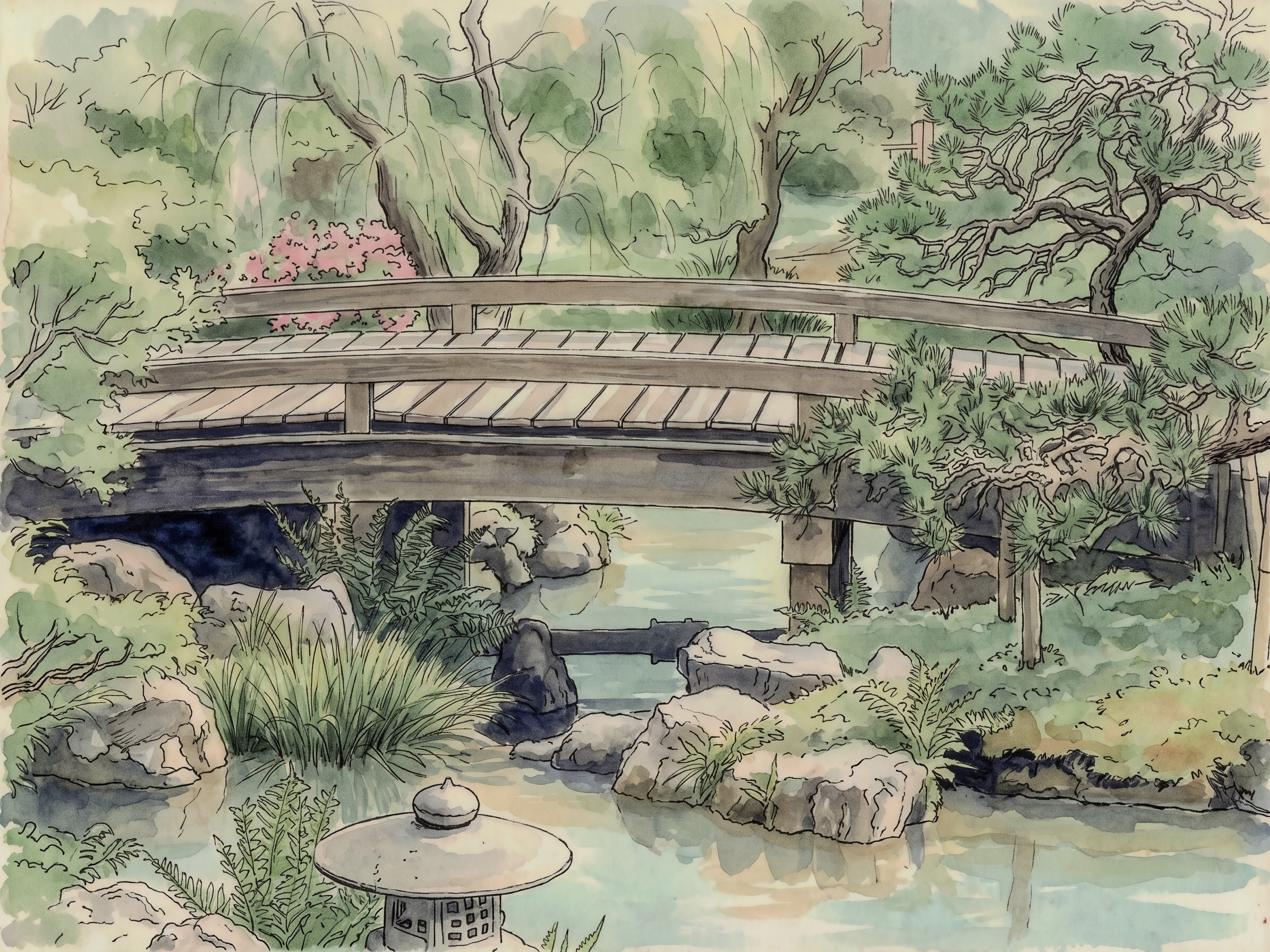
Most state-of-the-art GenAI models are capable of mimicking traditional artistic techniques. The Styles menu of our AI Playground contains buttons that will re-render your Indigo photo using a variety of techniques. The buttons we provide represent techniques we have found to be most successful when applied to everyday snapshots. Here are some examples:
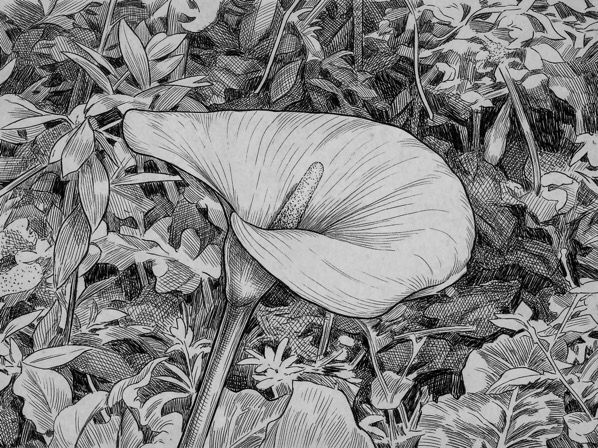
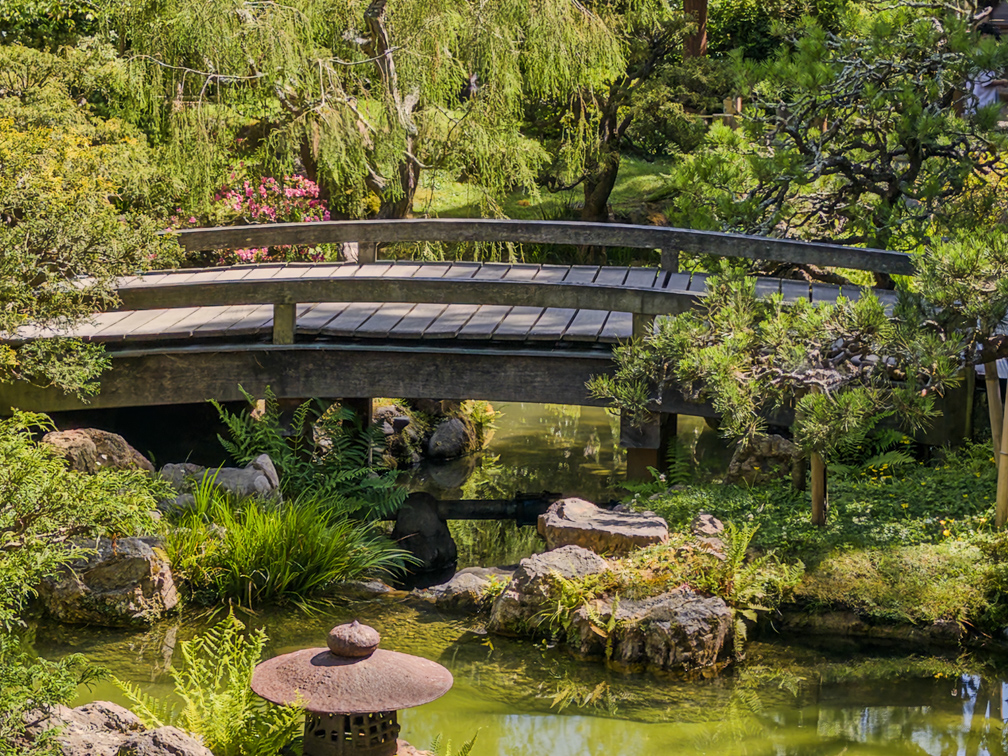
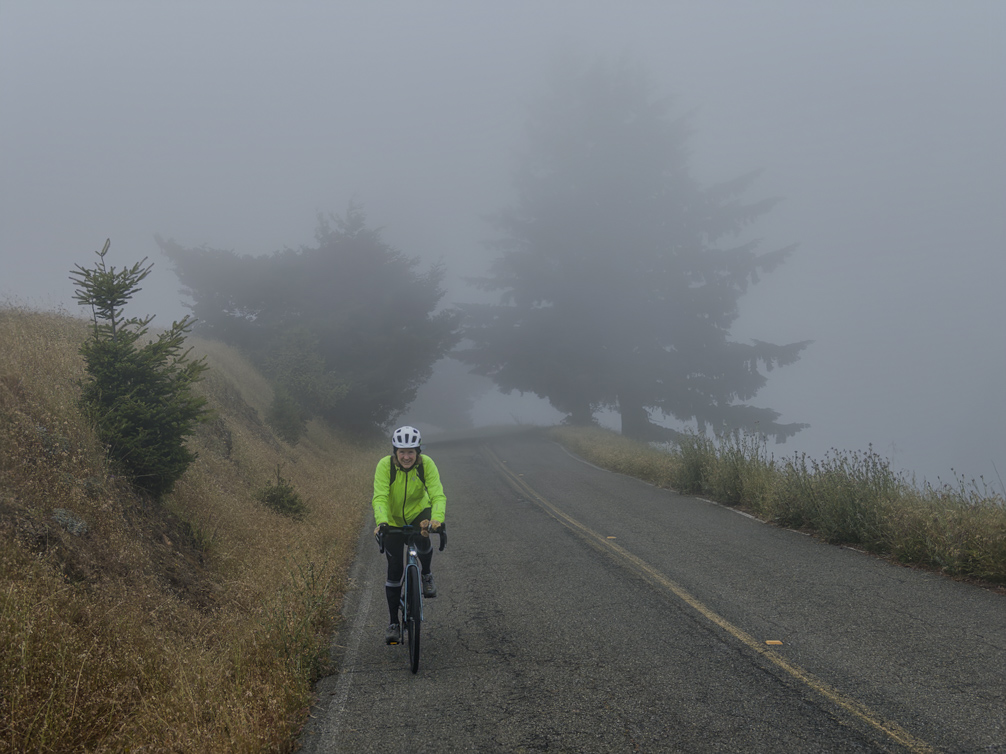
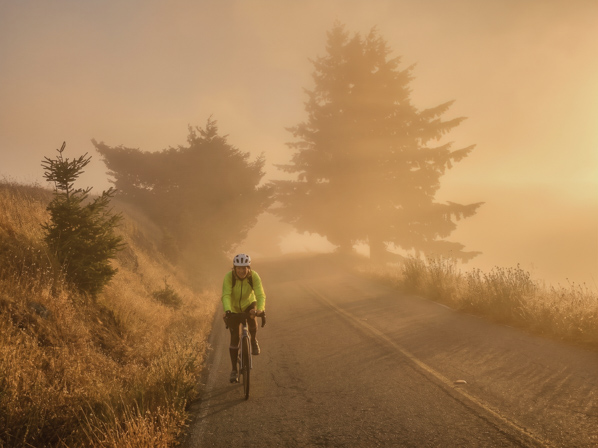
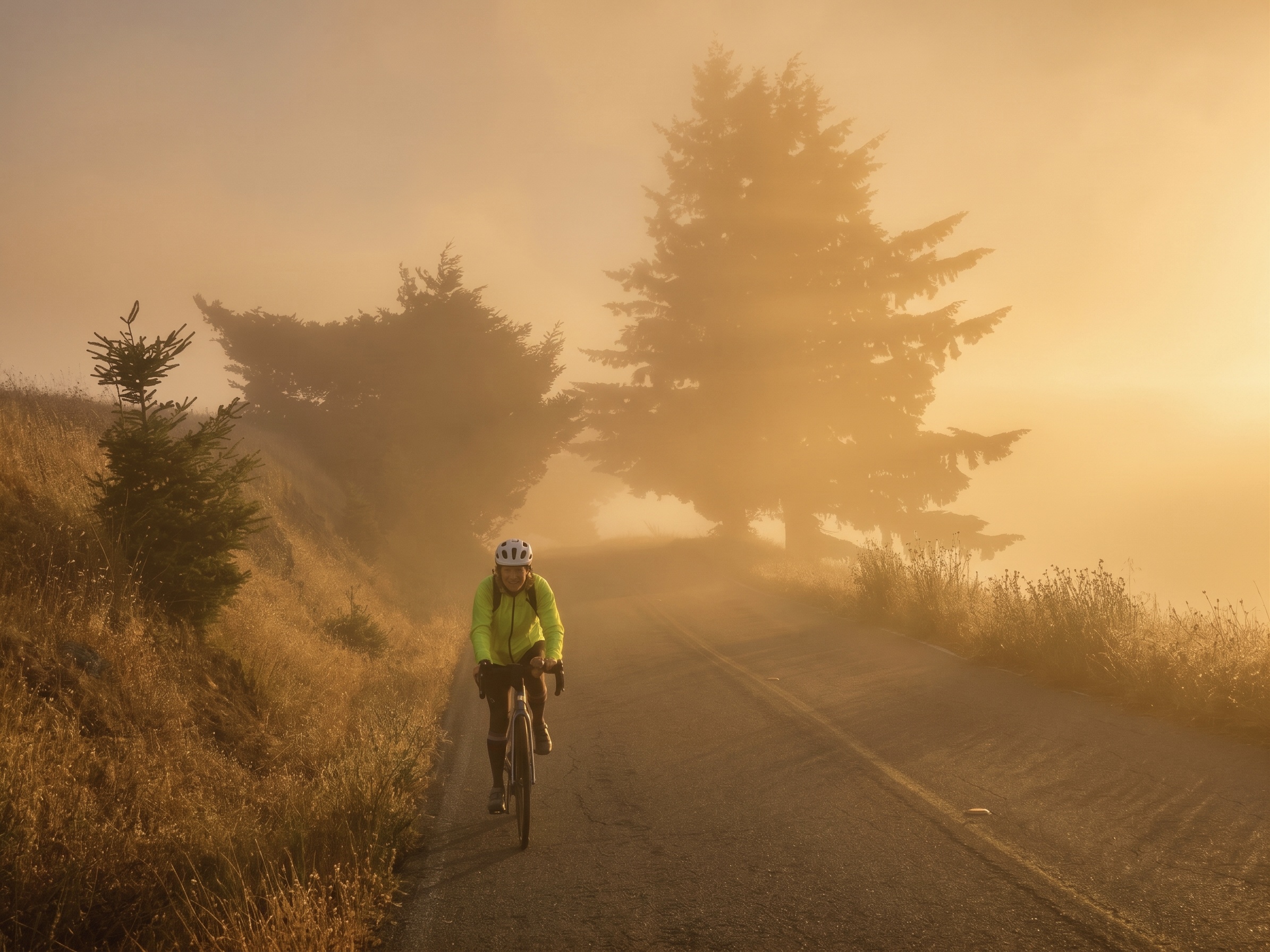
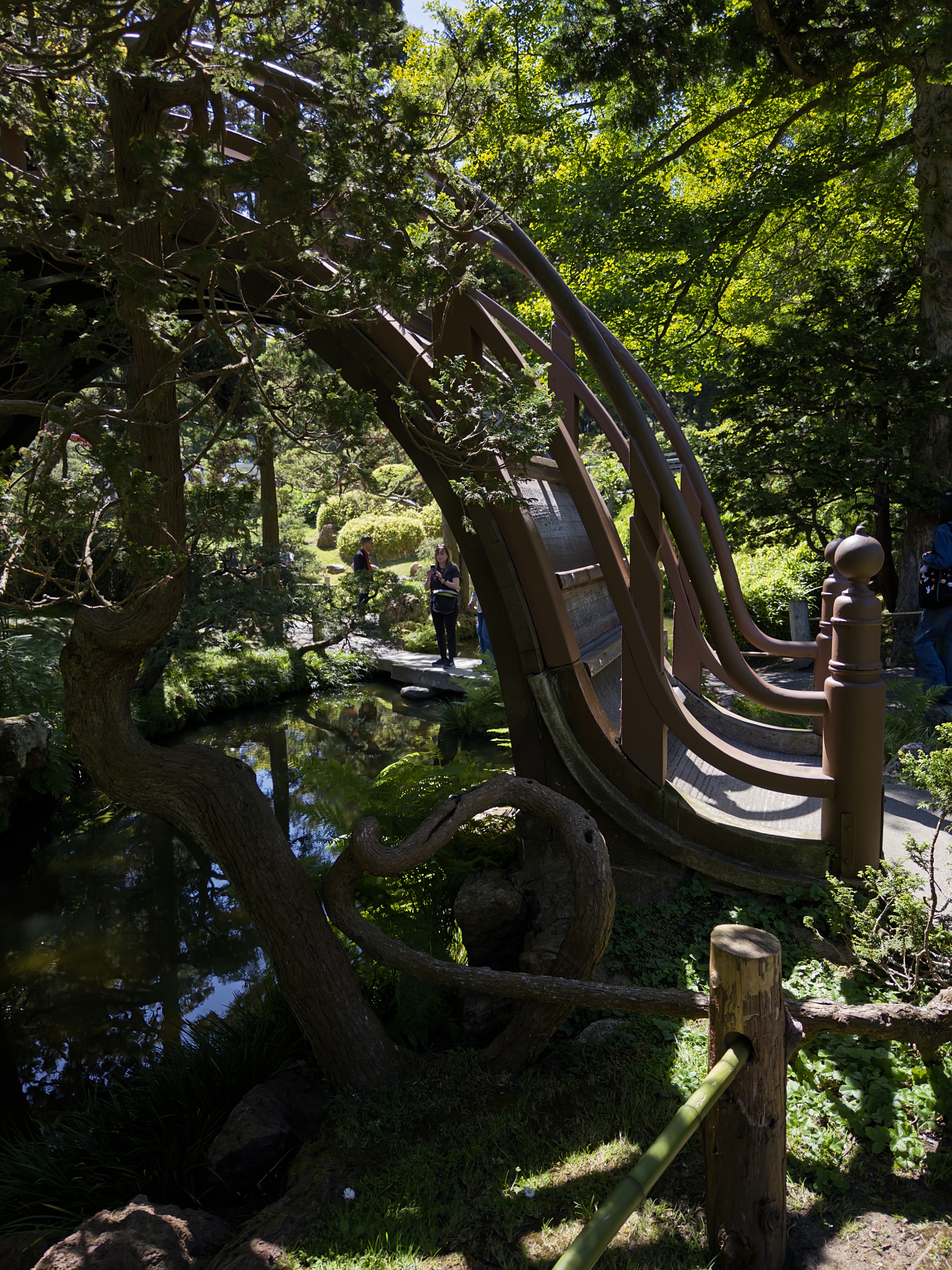
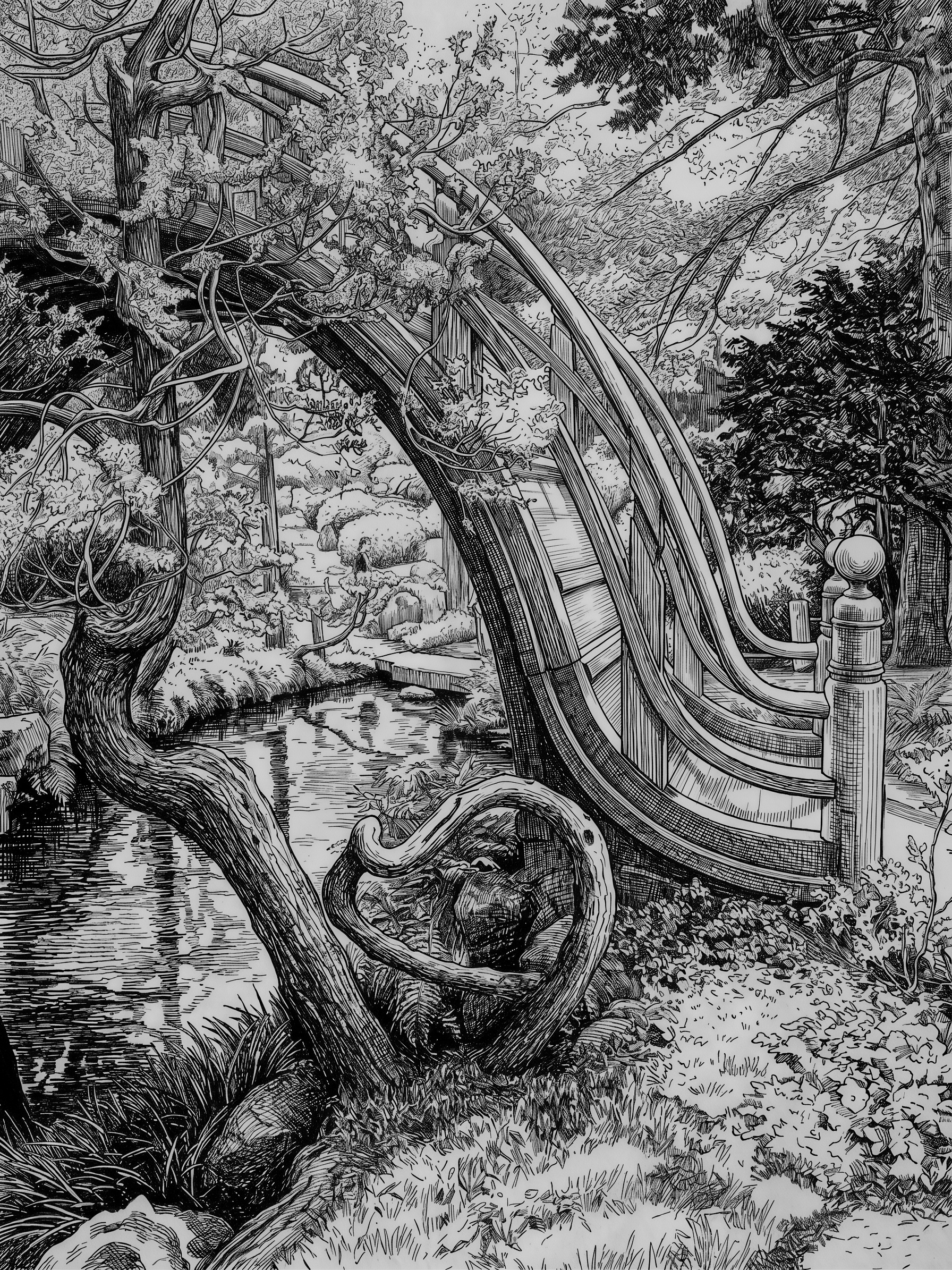
These photos were taken using Indigo, then re-rendered using buttons from our AI Playground Styles menu. The buttons are (top to bottom) "Pen and ink", "Ink line with color wash", and "Golden hour lighting". The prompts behind our buttons are more complicated than the button names, and have been refined through experimentation to highlight the main subject. Thus, it can turn the overly busy garden photograph (middle row) into a pleasing illustration with a focus on the bridge. In the third row, note that the woman's face changes slightly. We'll come back to this identity shift problem later. By the way, while Indigo photos are high dynamic range (HDR), traditional artistic techniques (first two rows) are not, since they can be no brighter than the paper on which they are drawn. Our renderings respect this characteristic.Object editing
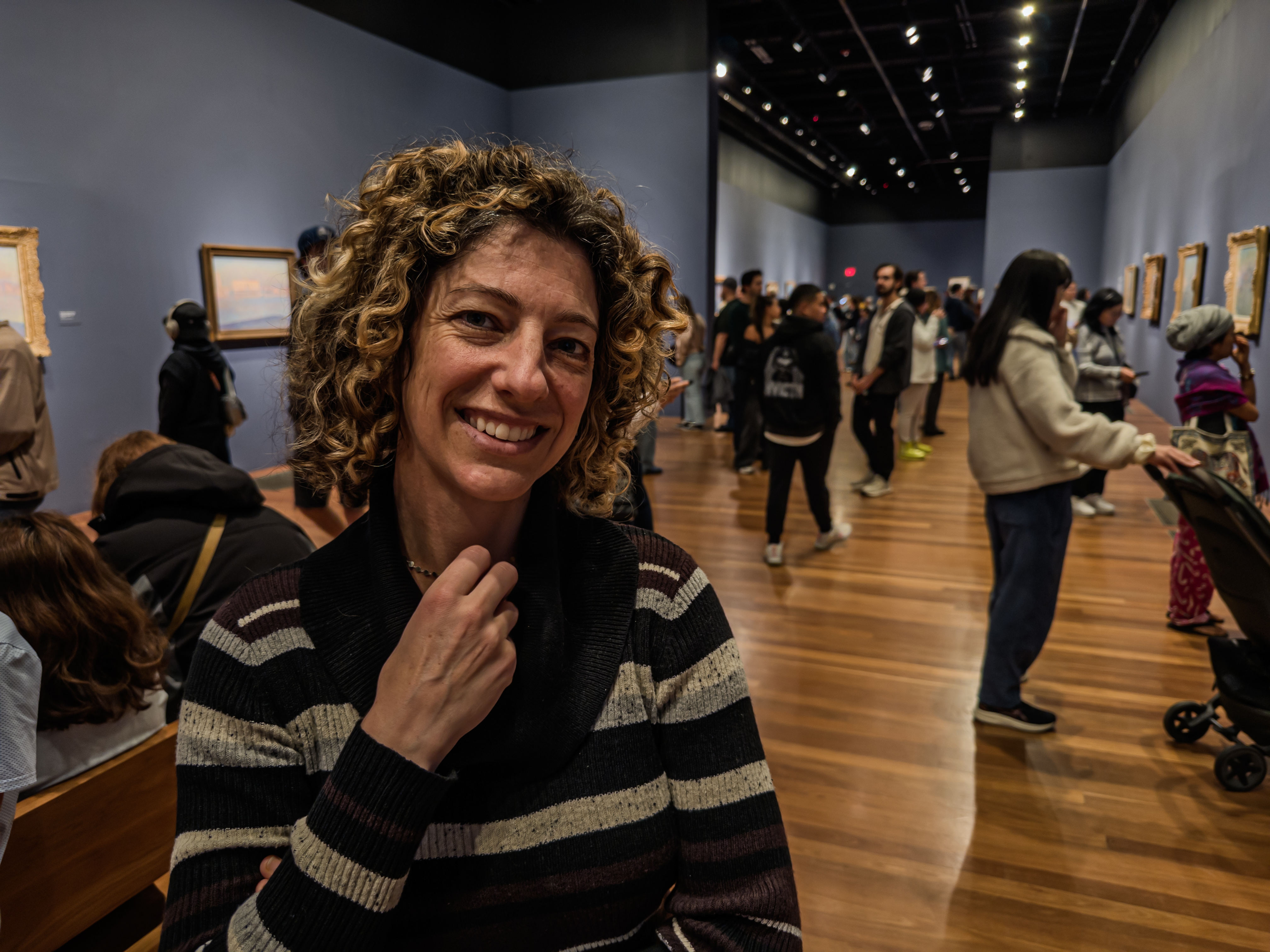
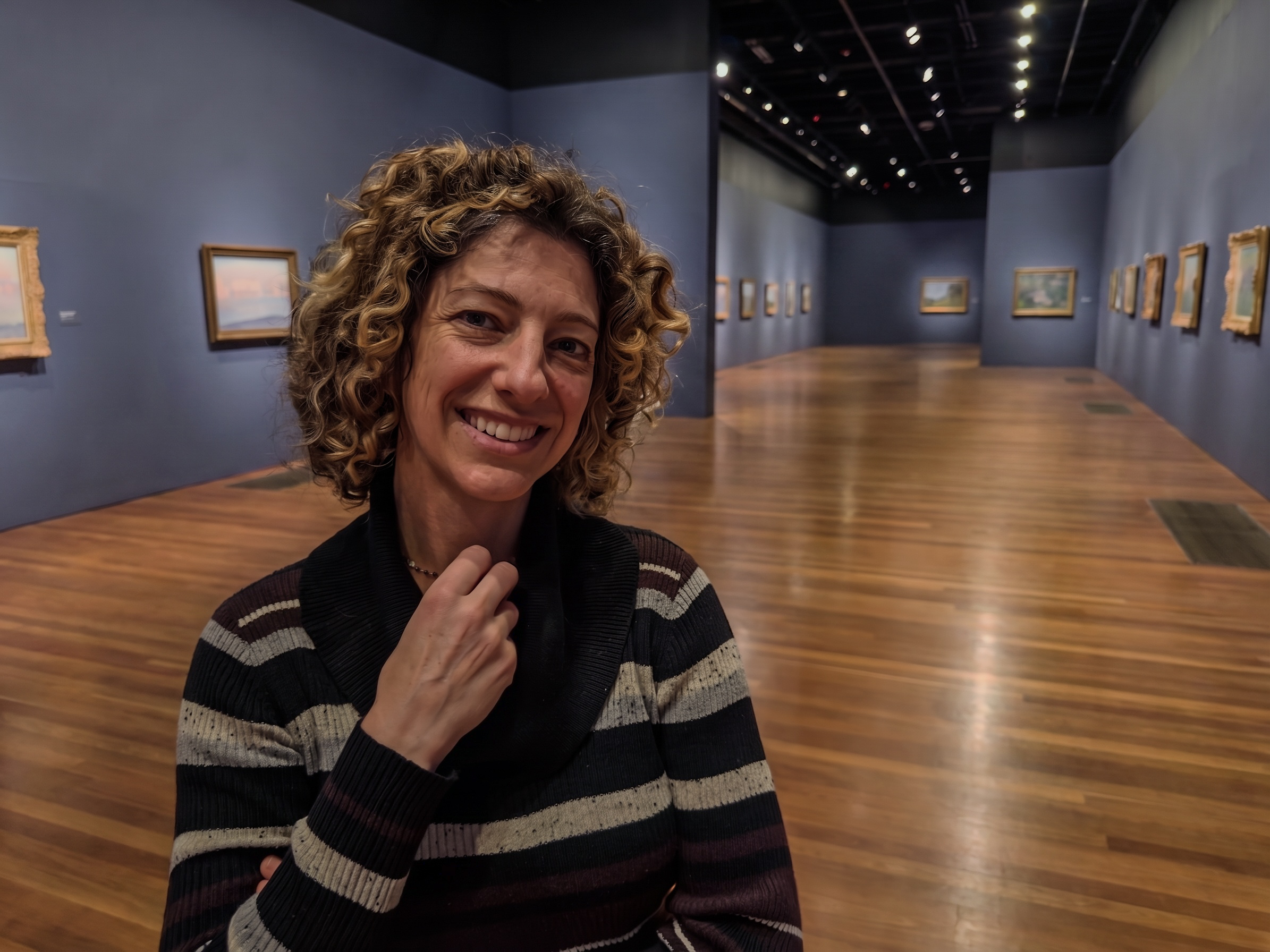
Project Indigo is not a photo editor, but as part of AI Playground we are exploring whether simple editing operations can be performed in the camera app using a generative model. Specifically, the Object Editing section of our AI Playground contains buttons for distractor removal and defocusing the background to create a shallow depth of field. Within distractor removal is a list of toggles that allow you to remove one or more categories of distractors. You can also add categories by typing (or dictating) what you want removed, and you can save or delete these additions. Here are some examples:
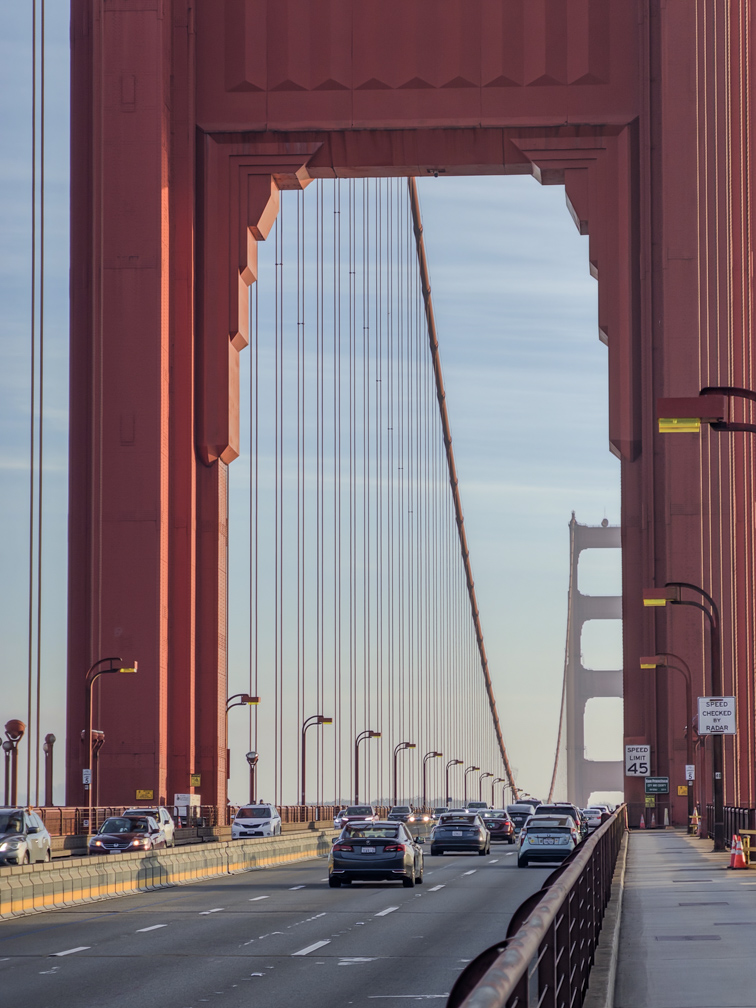
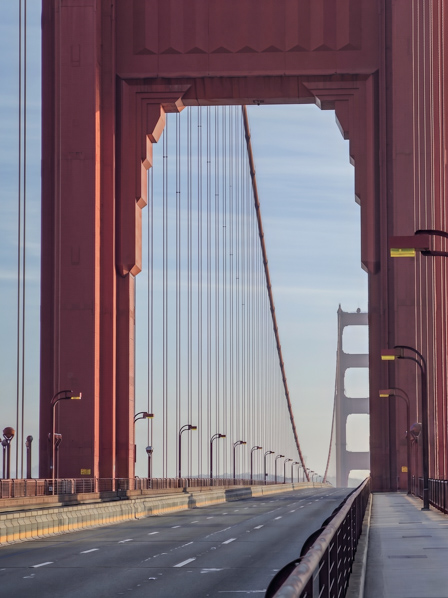
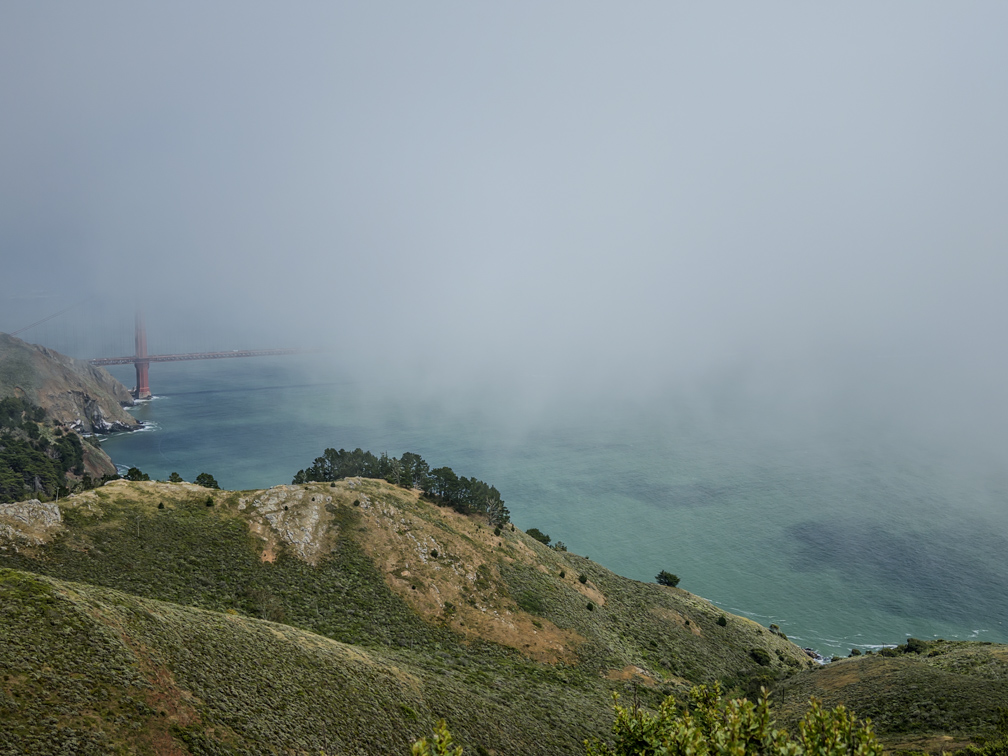
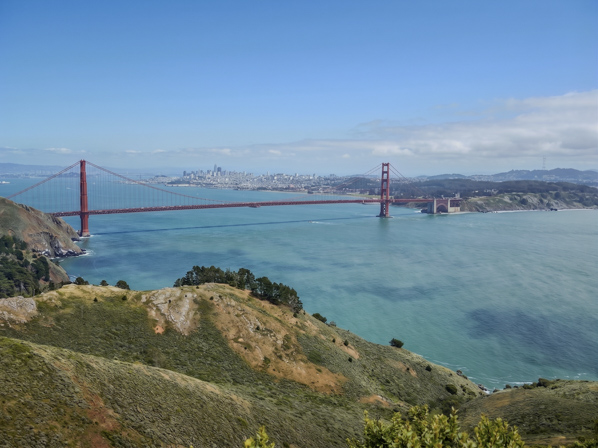
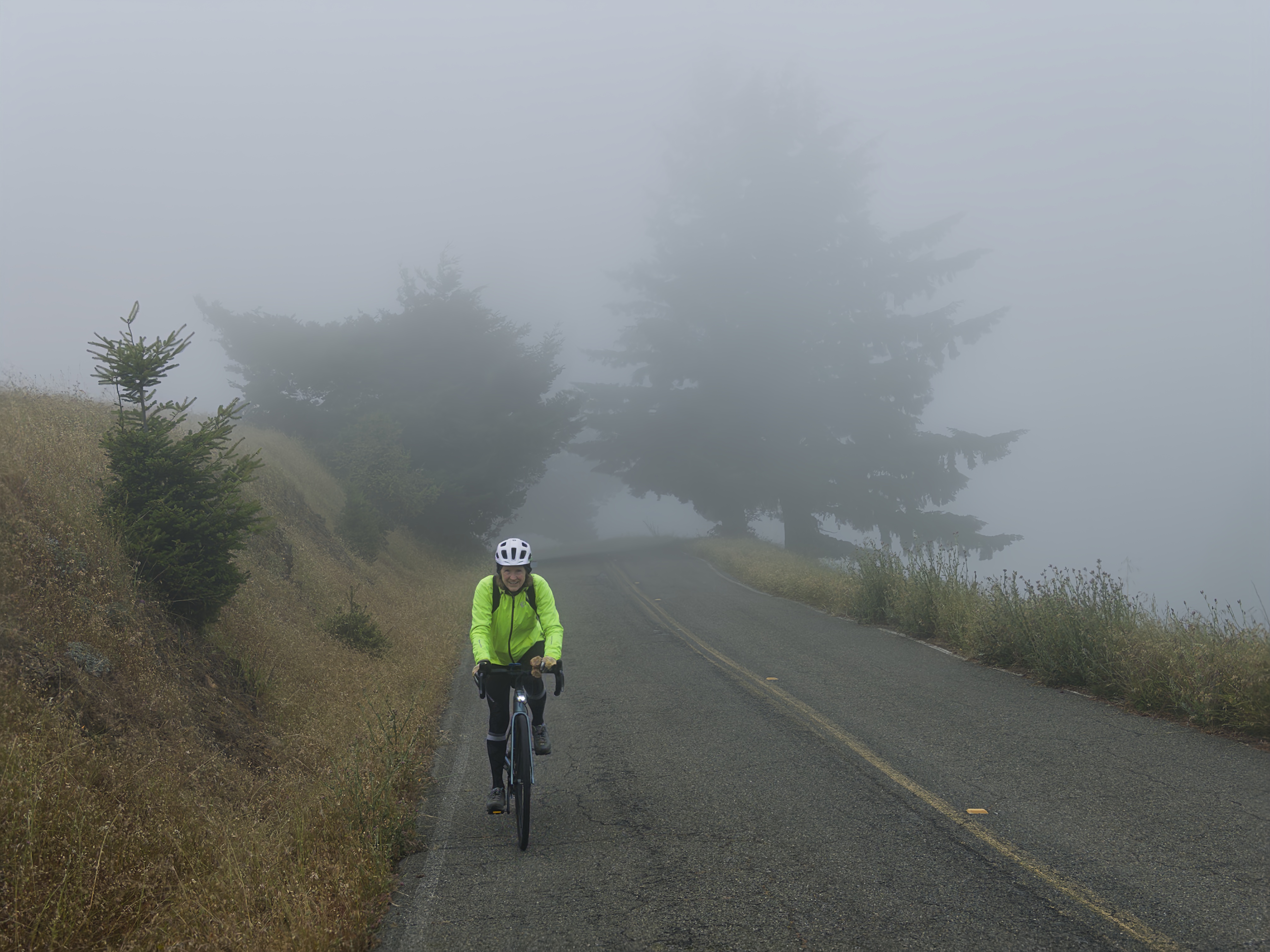
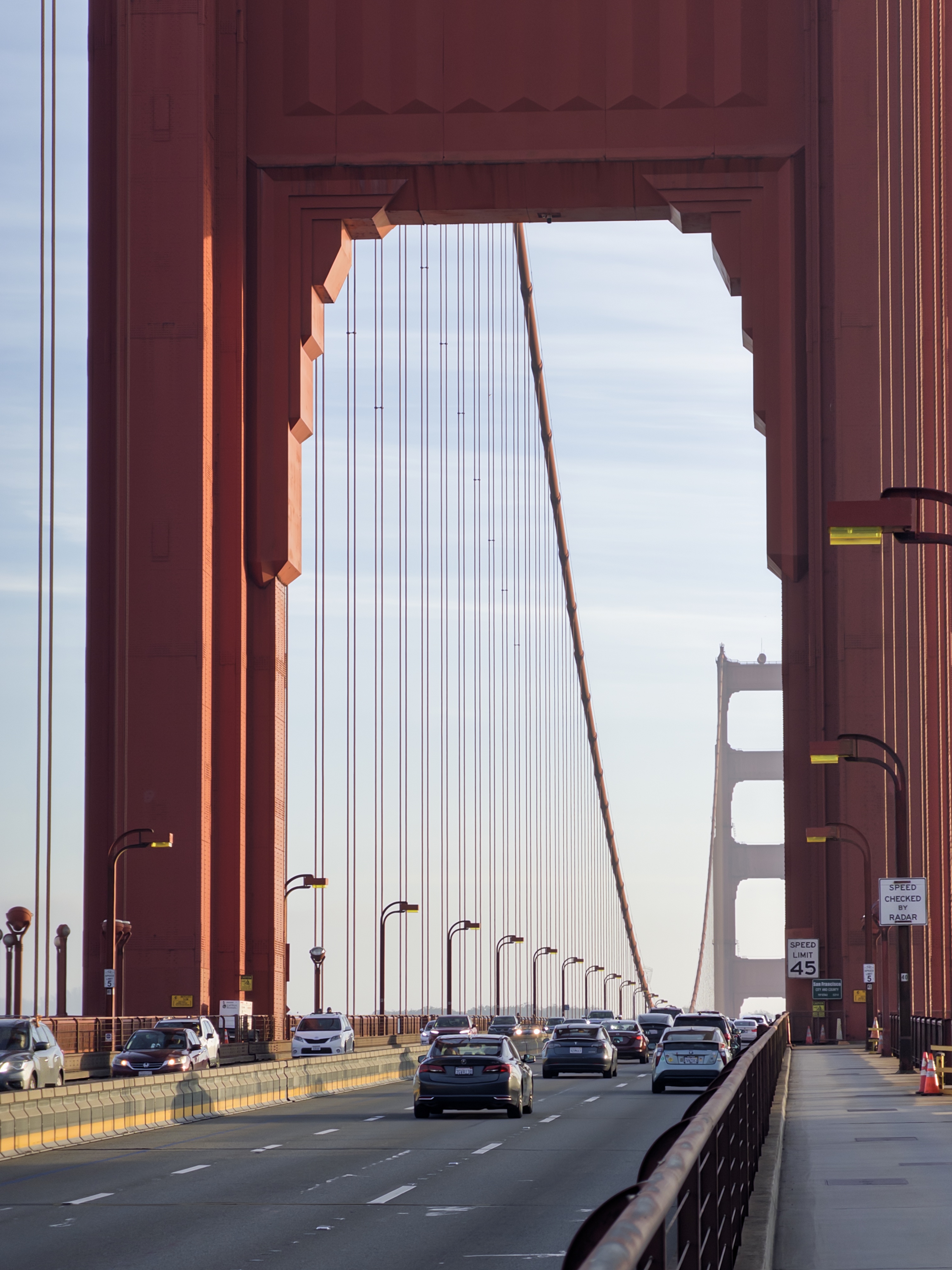
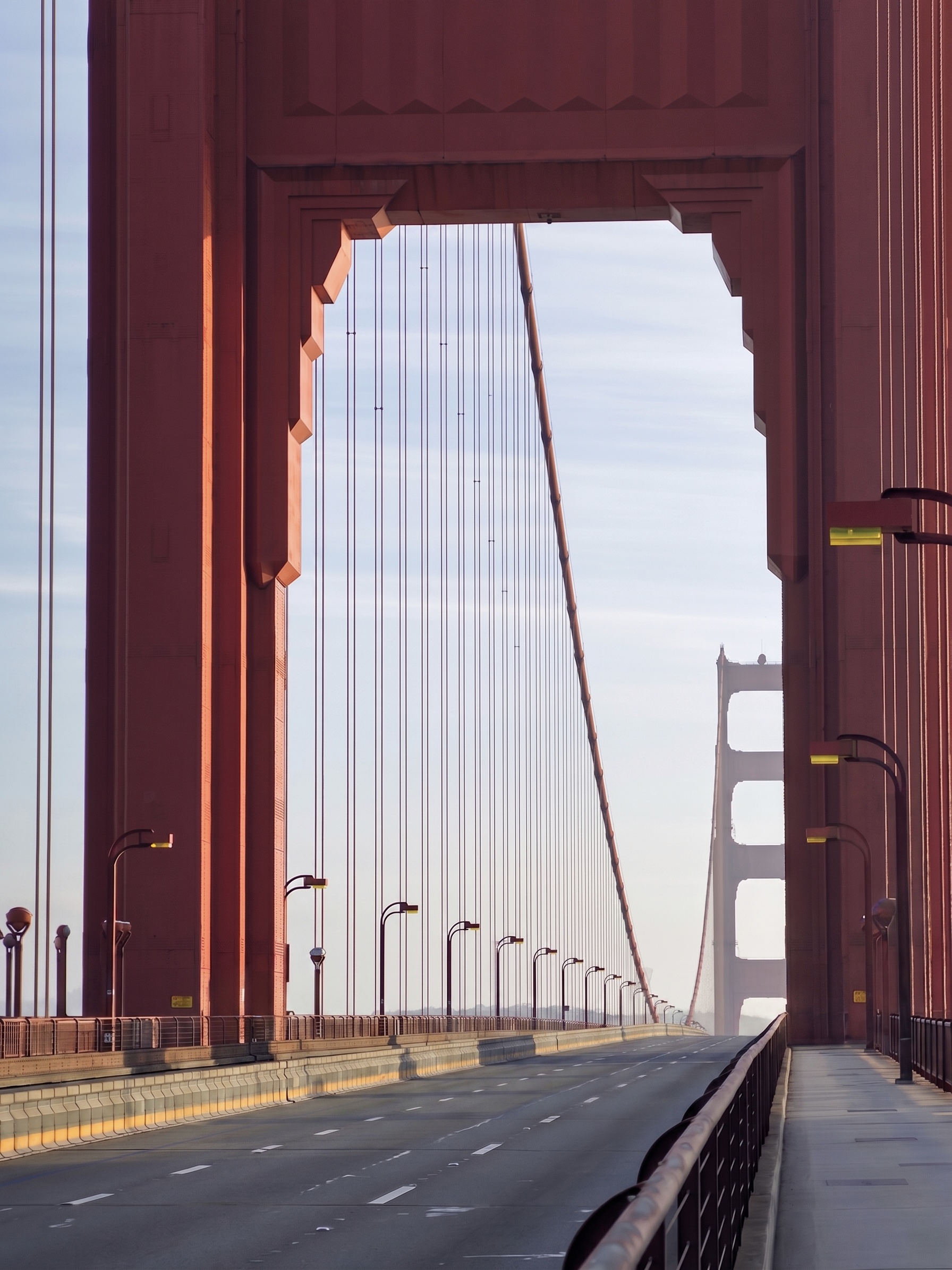
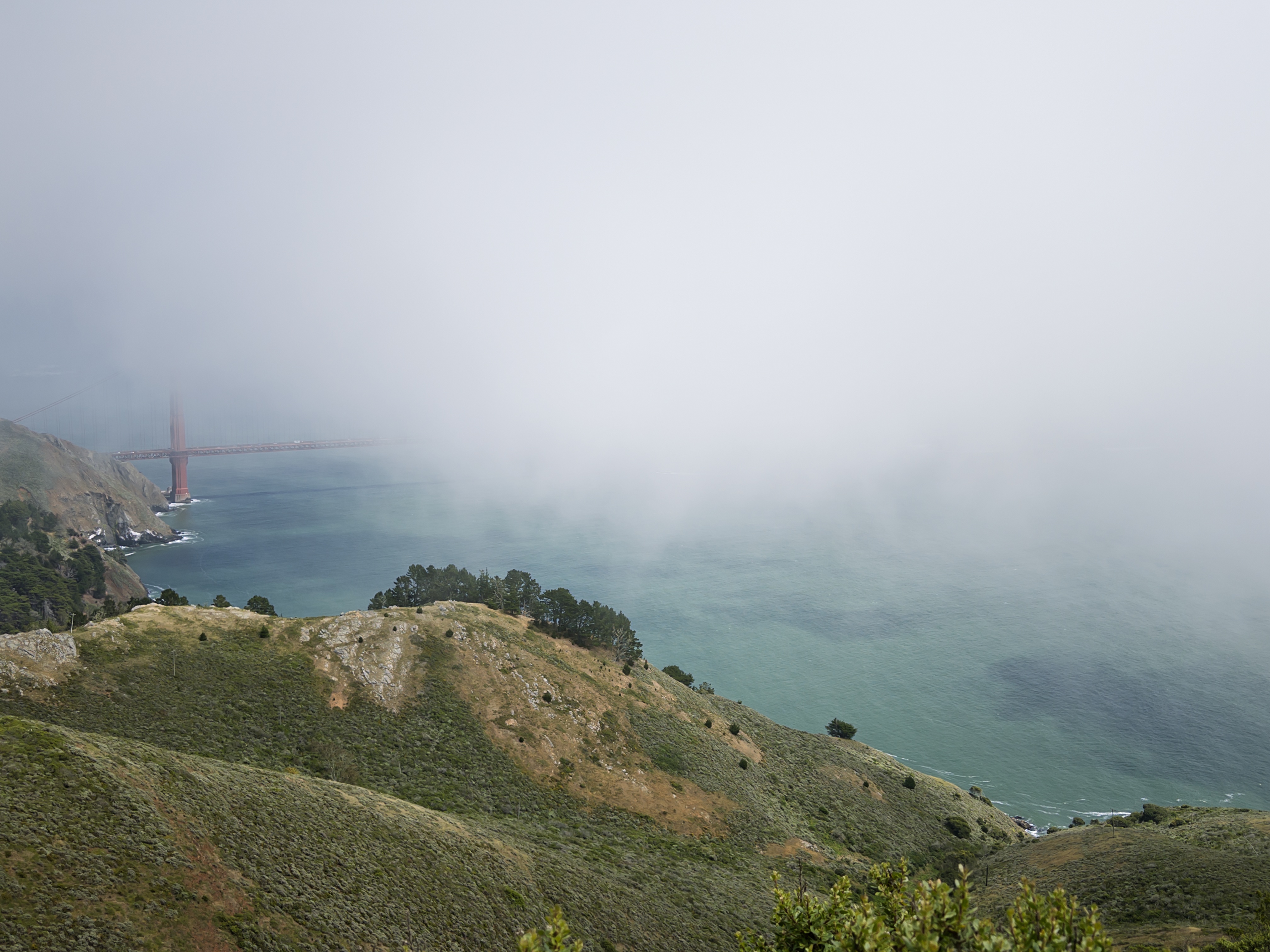
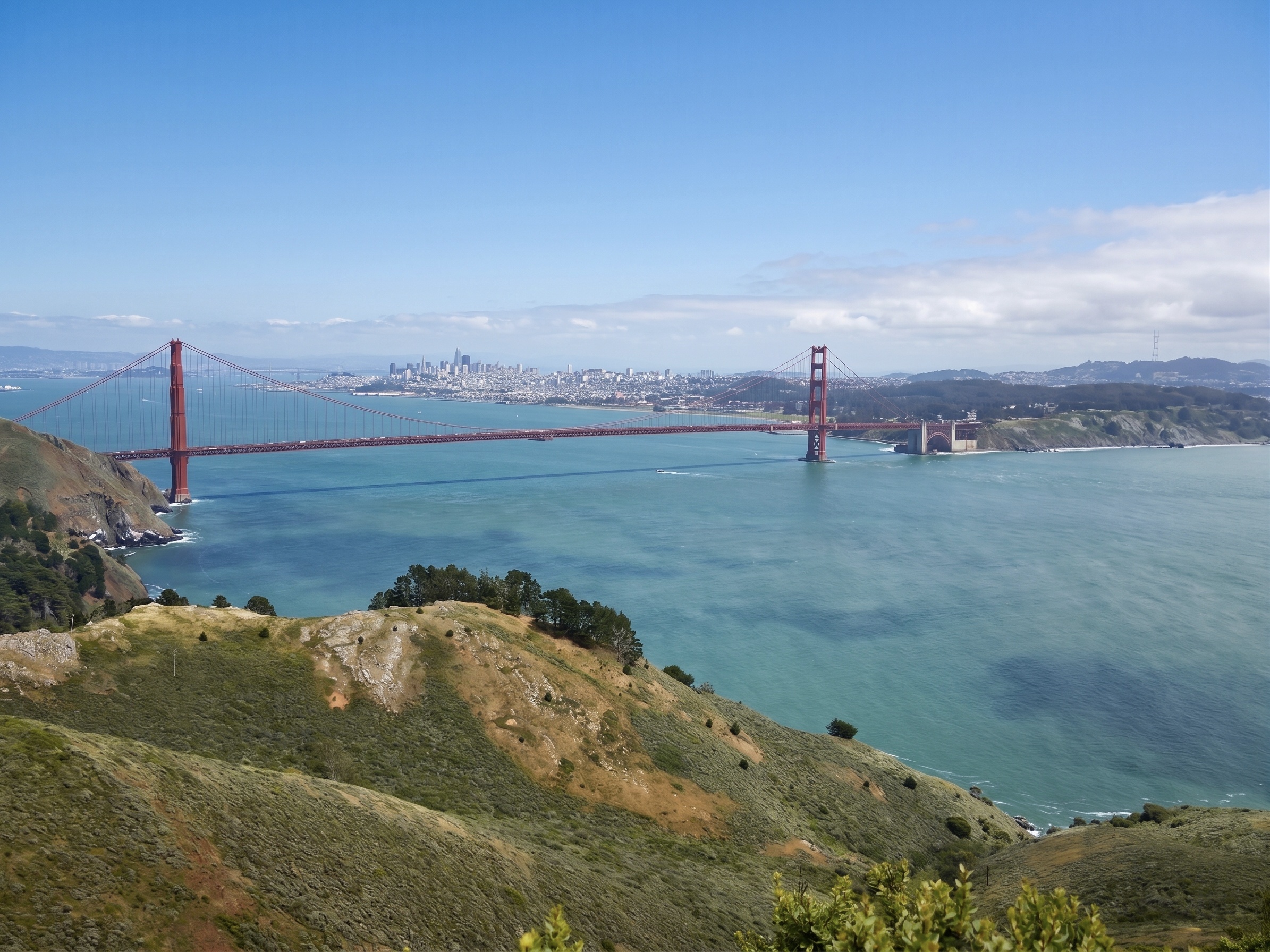
The top row is a common use case for Distractor Removal, requiring flipping only the toggle for "Background people". The middle row is more complicated; selected distractors were "Vehicles", "Clutter", and an additional category, "Signs". Or one can have some fun with a Custom Edit, like "Remove fog", in which the model generates the rest of the Golden Gate Bridge and San Francisco!Getting feedback on your photos
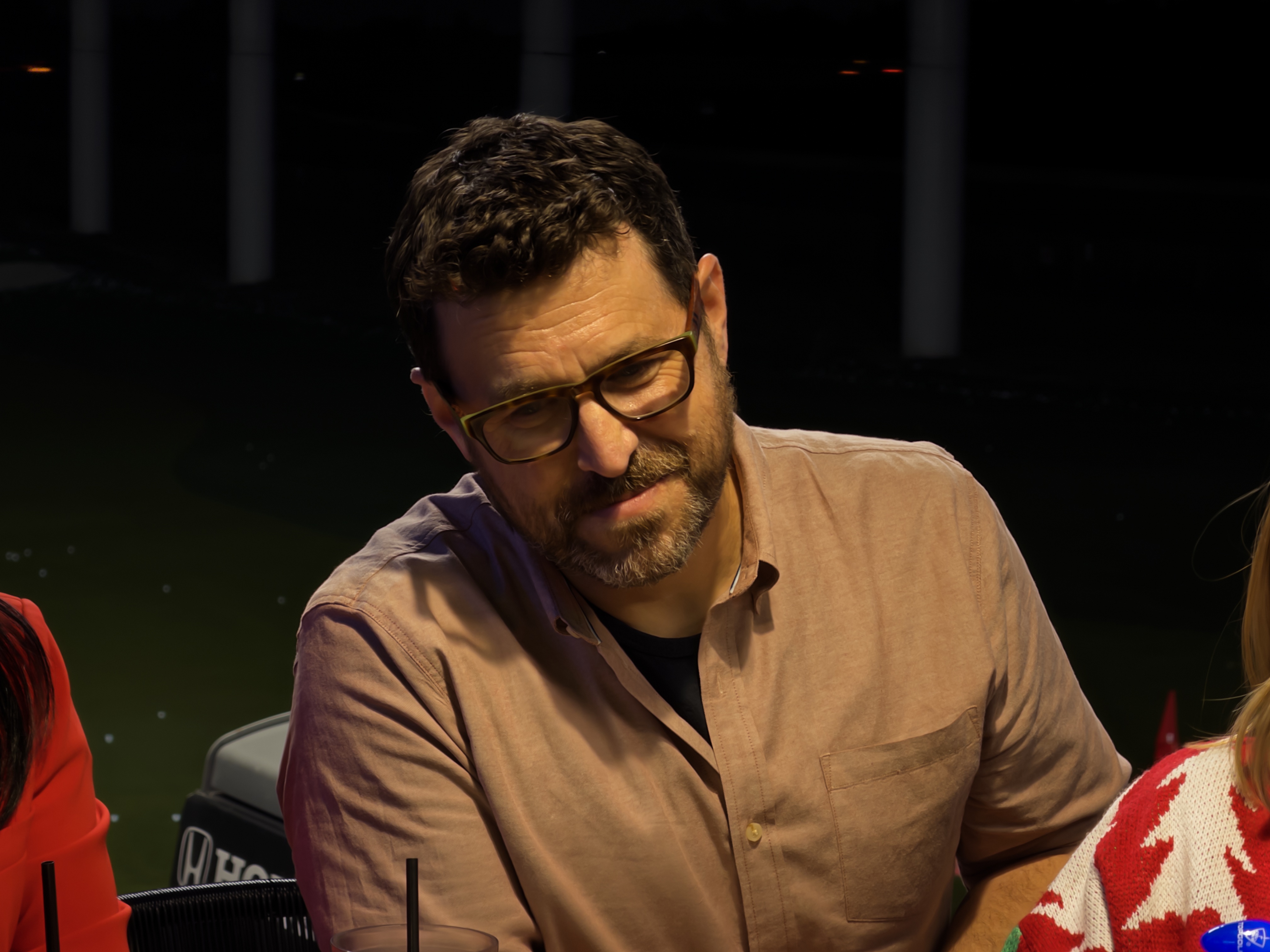
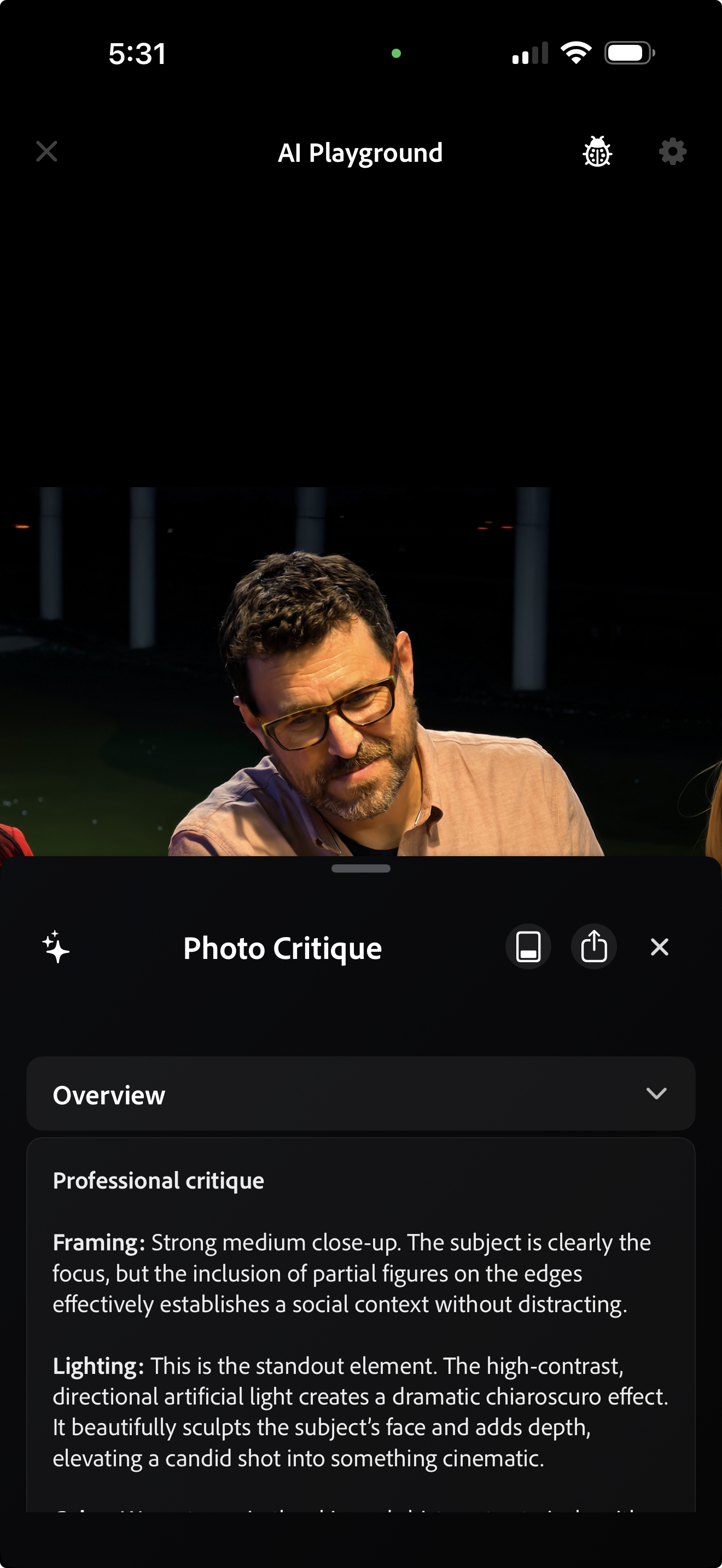
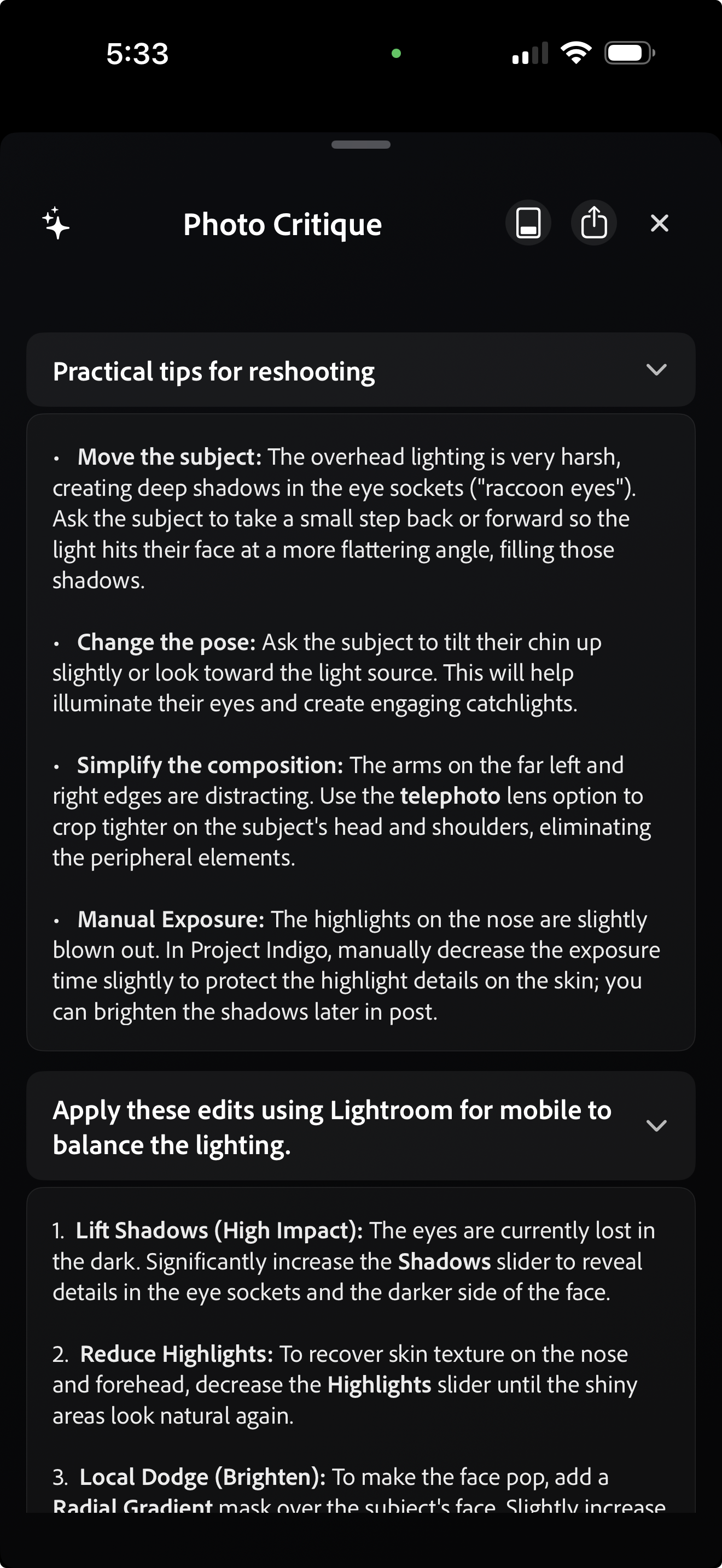
Many software products use AI to summarize or critique human-created documents, like email and résumés. We are exploring how to do something similar for photography - to help users learn or advance their photography. Since Indigo is a camera app, our AI analysis can provide both reshooting suggestions as well as editing suggestions. Here's an example:
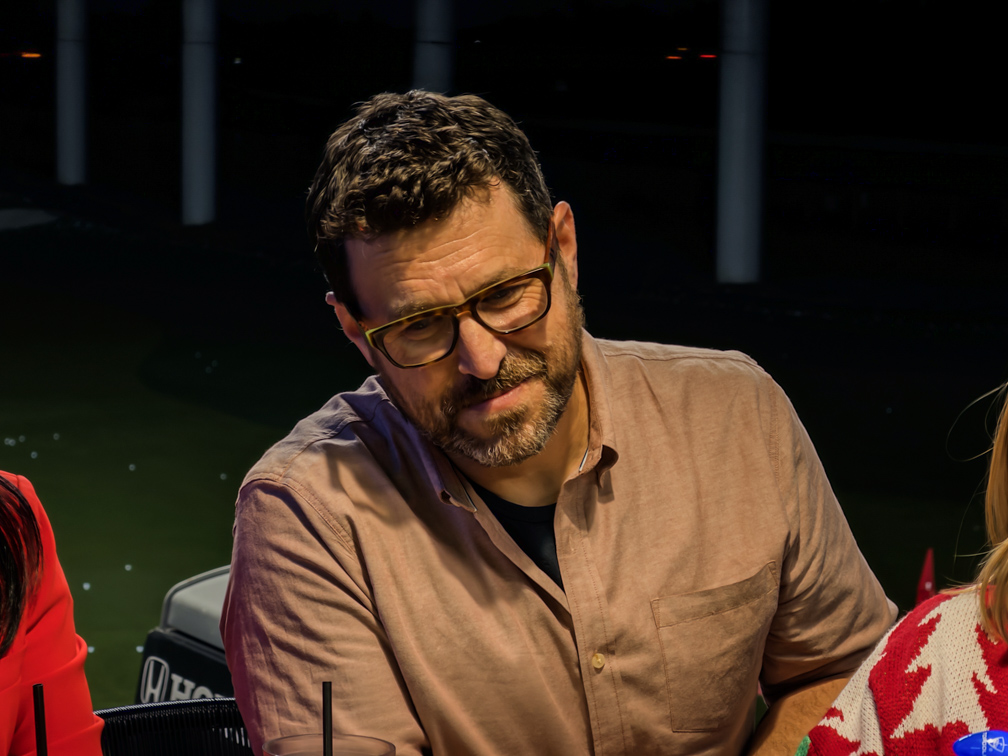
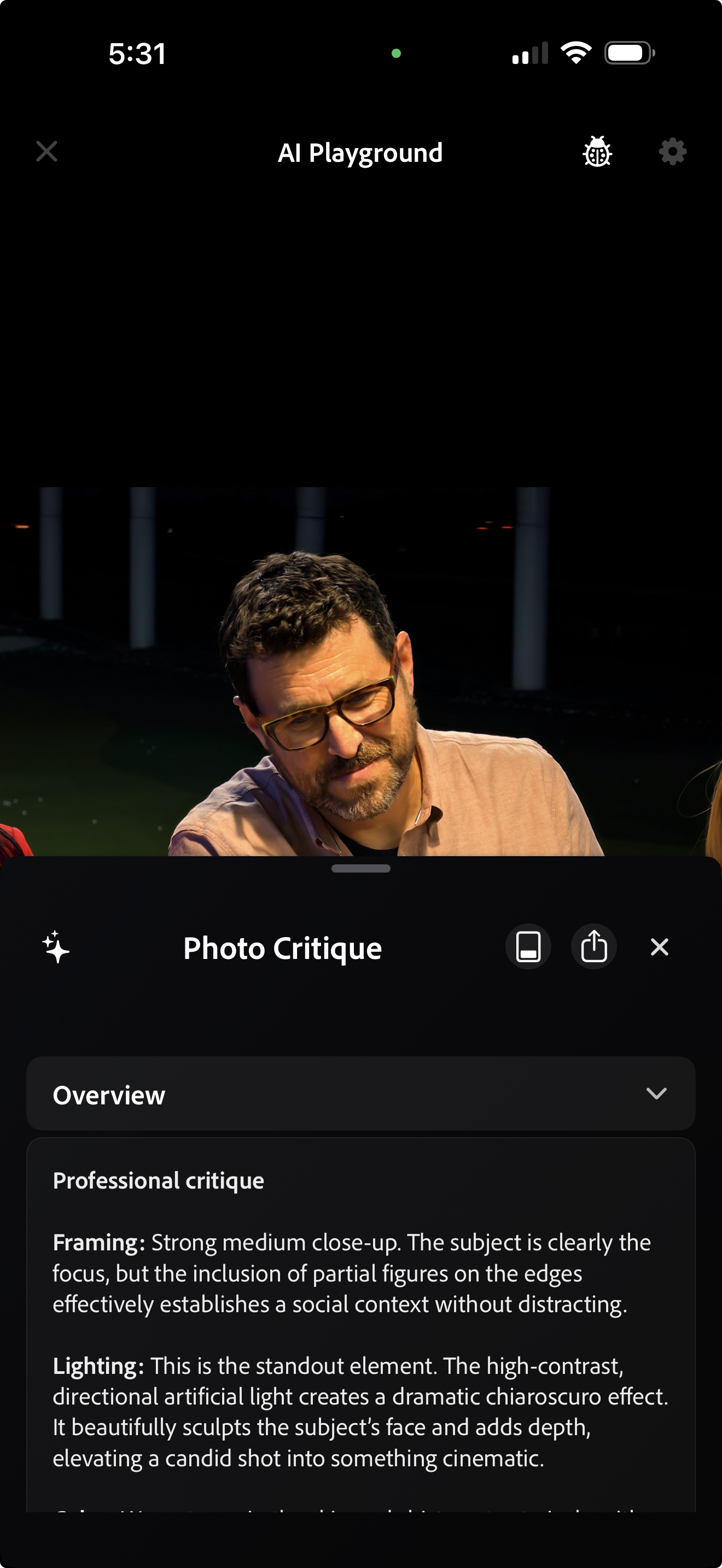
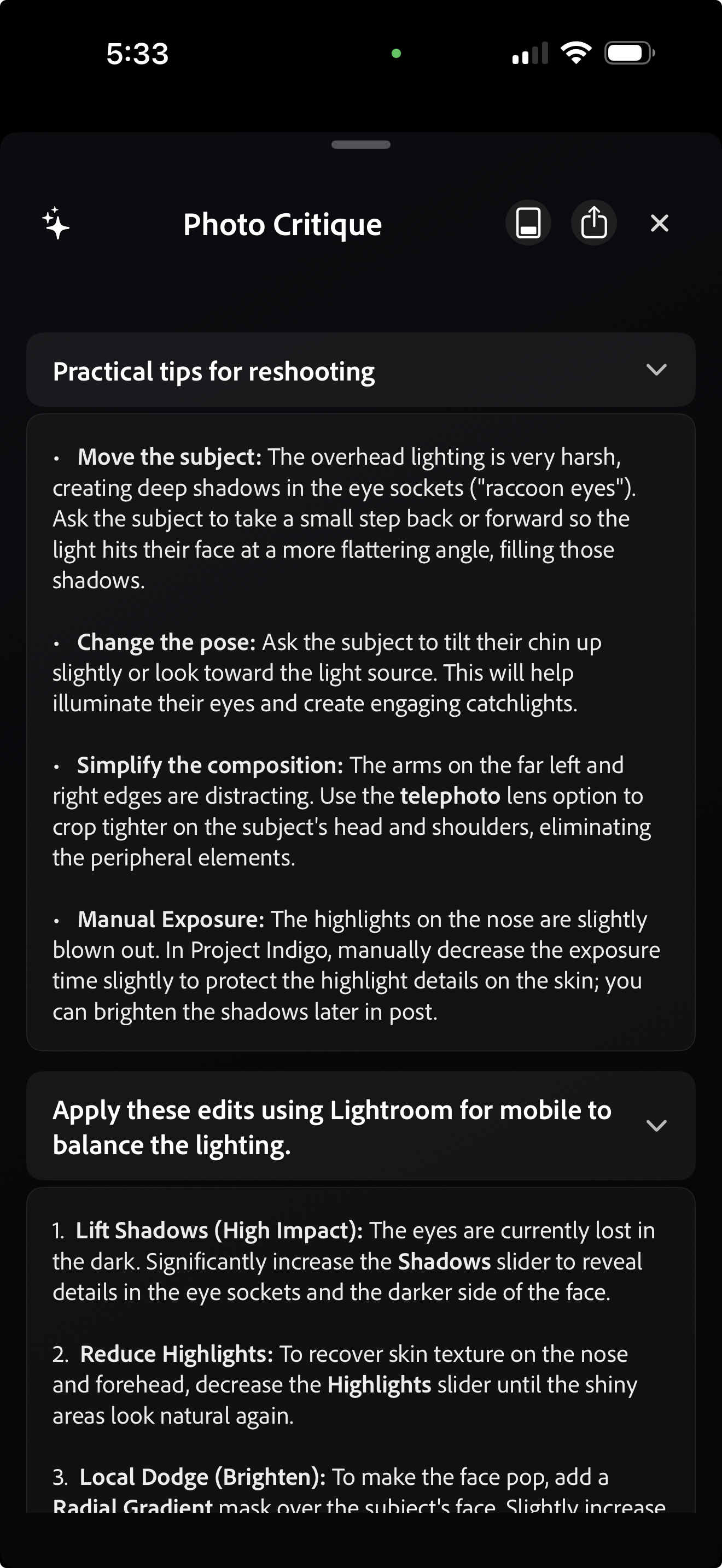
The input is a candid snapshot. Beside it is a critique of the photo - good points and bad - provided by a large language model (LLM) at the press of a button in the AI Playground. A second button produces suggestions for reshooting, in case you are still in the moment, as well as suggestions for editing afterwards. Click on each image (above) to view it larger.Producing useful suggestions is harder than you might think. Our prompt needs to advise the LLM that this is a smartphone photograph. My iPhone 17 Pro Max has several lenses, including telephoto and ultra-wide, but it has no variable optical zoom or adjustable aperture. Thus, it wouldn't be useful to suggest, for example, zooming in or stopping down the lens. We are working on customizing these prompts to reflect individual phone models and lenses, each of which has unique capabilities (including minimum focus distance). We are also working on making suggestions for composition and cropping, based on an additionally captured ultra-wide photo or video.
Thinking out of the box
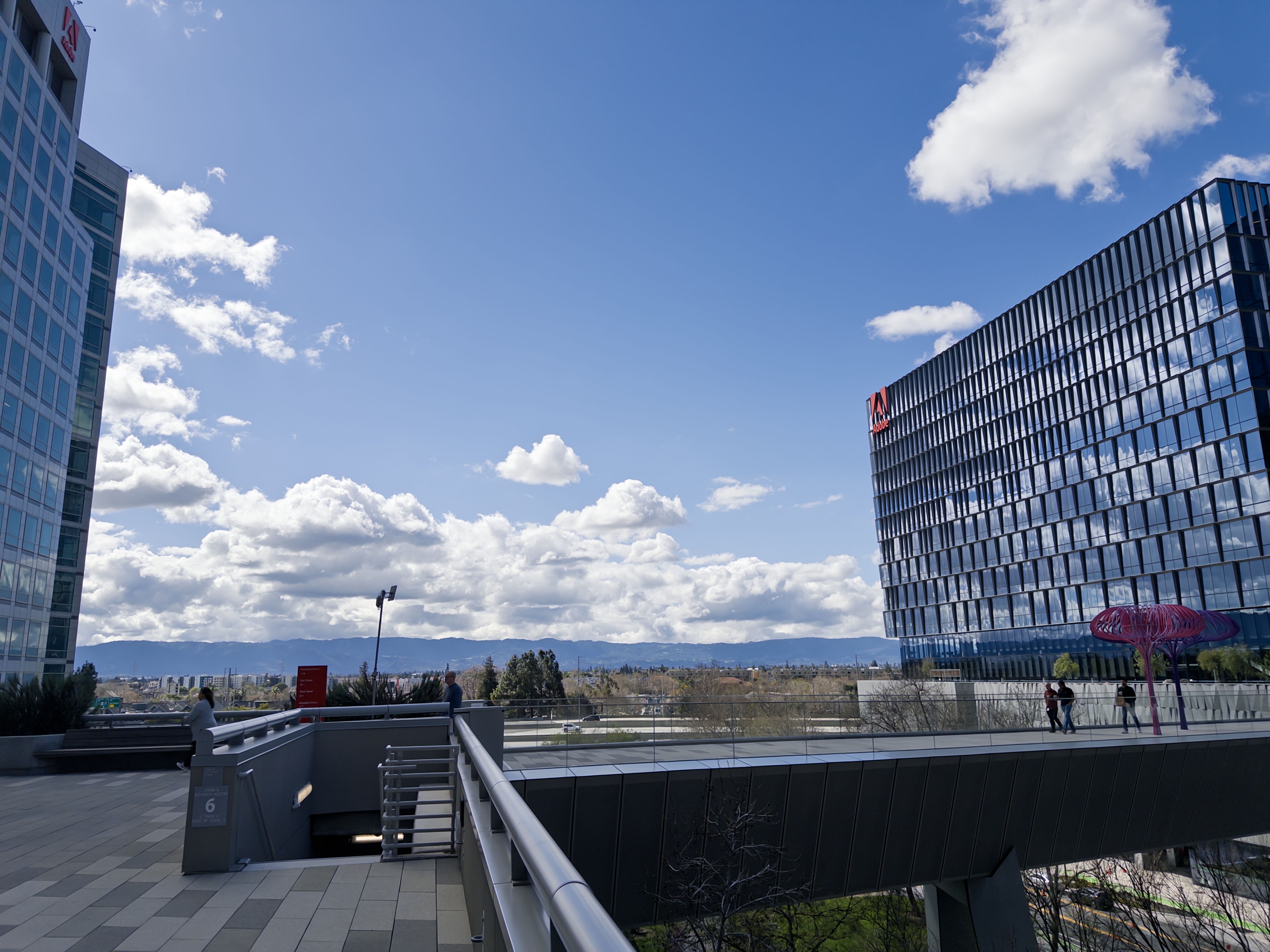
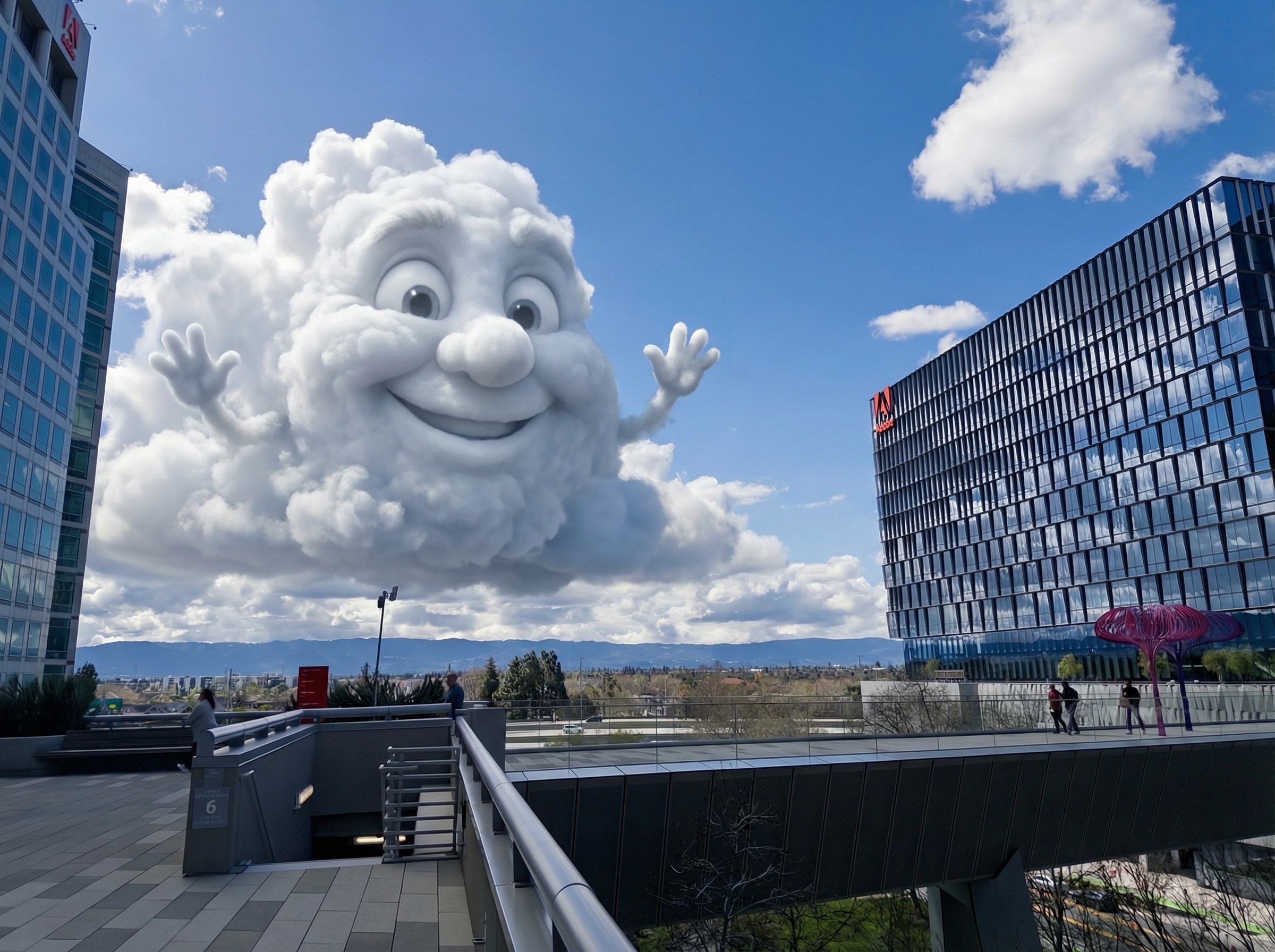
While our AI Playground provides buttons for many common generative editing operations, our Custom Edit button unlocks the full power of arbitrary text prompts. Here are some ways you can use this capability:
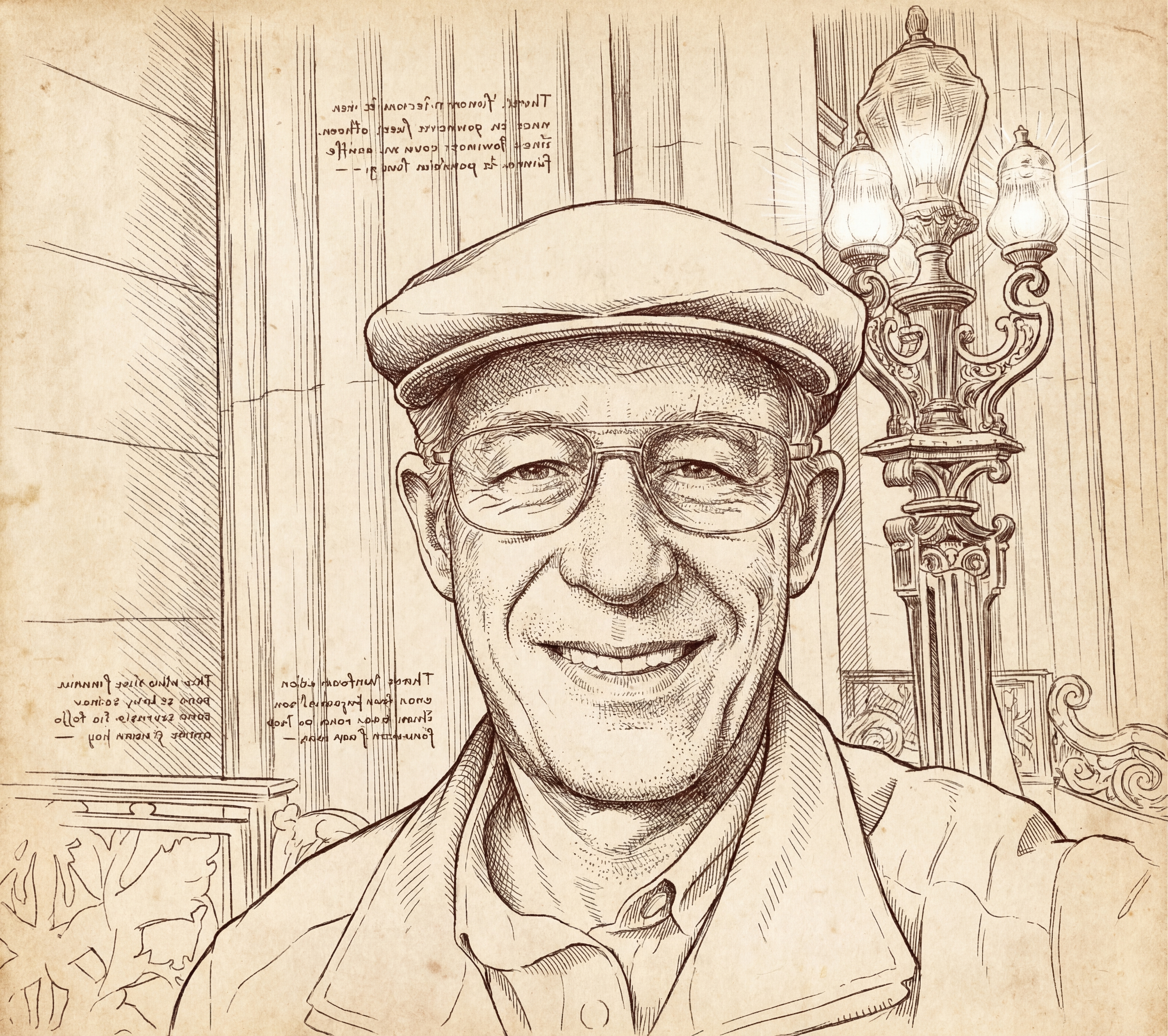
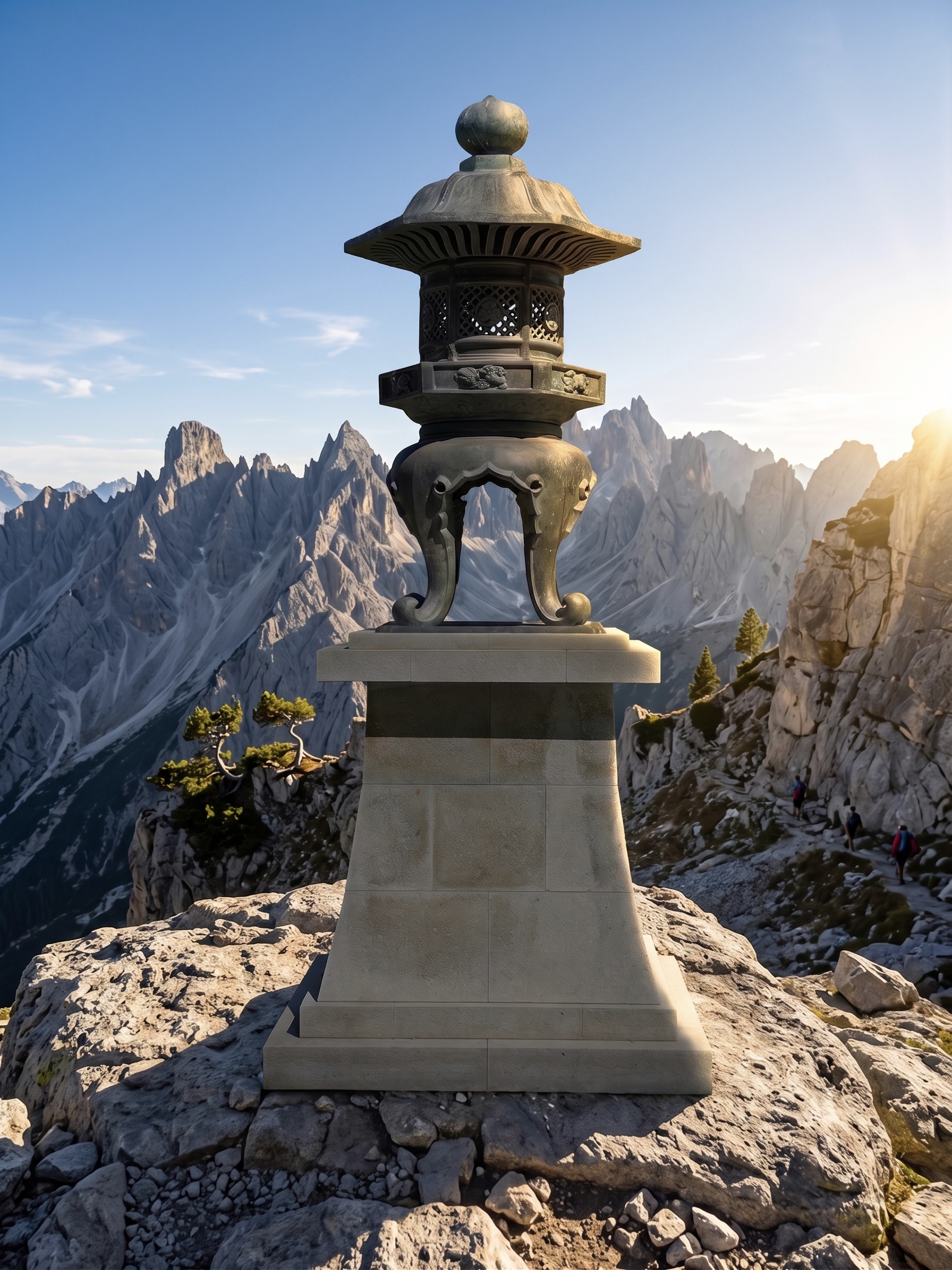
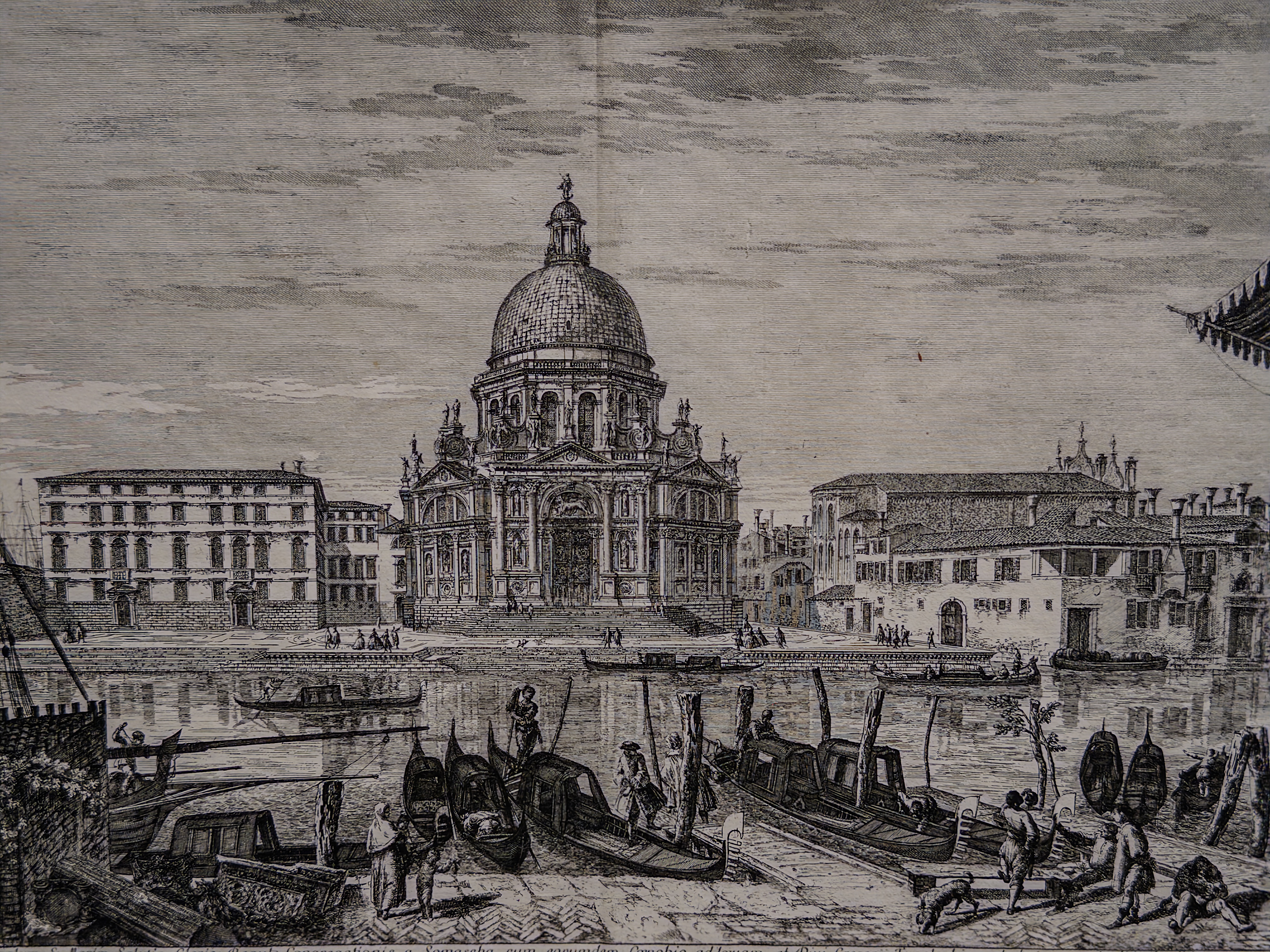
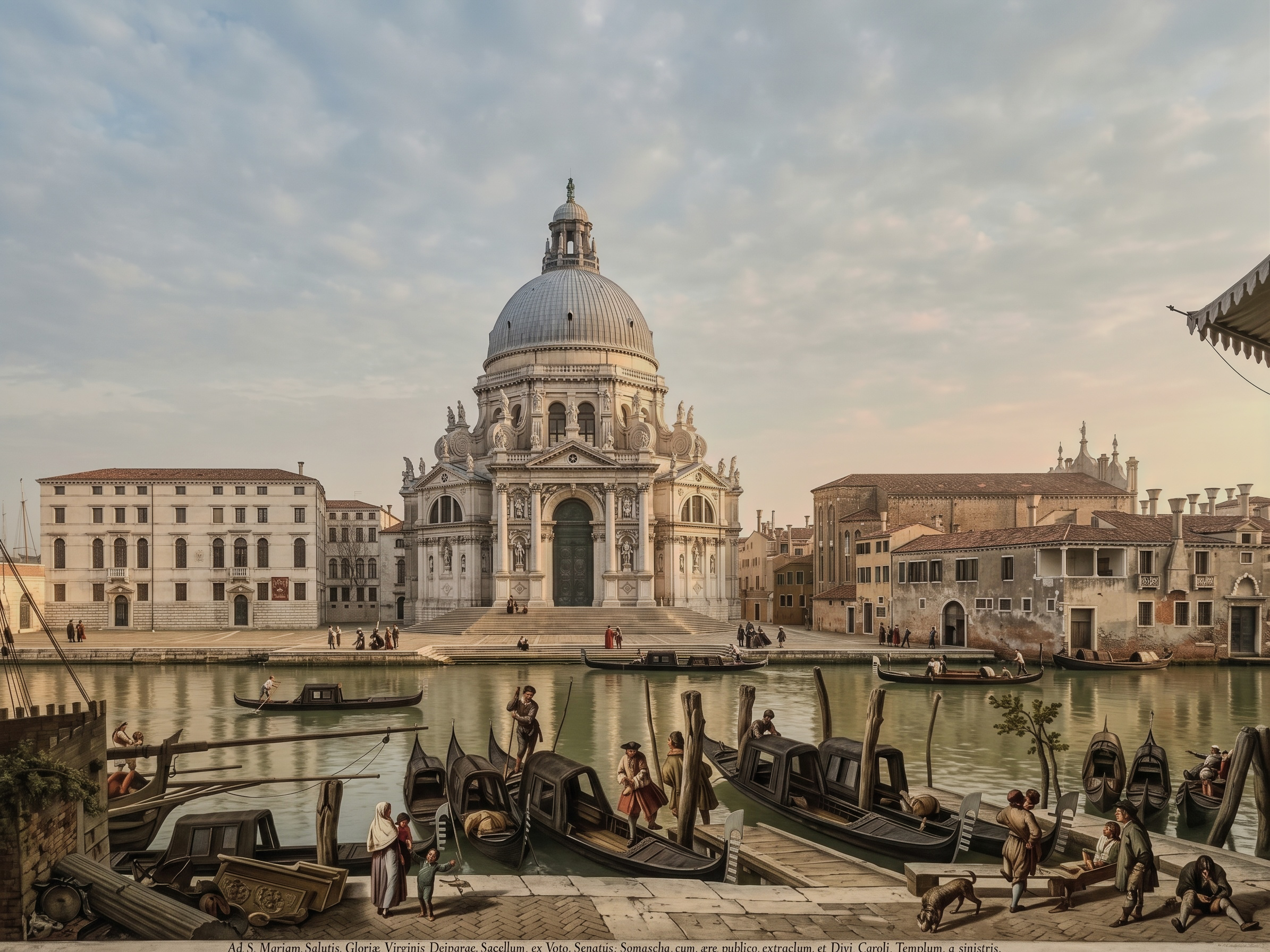
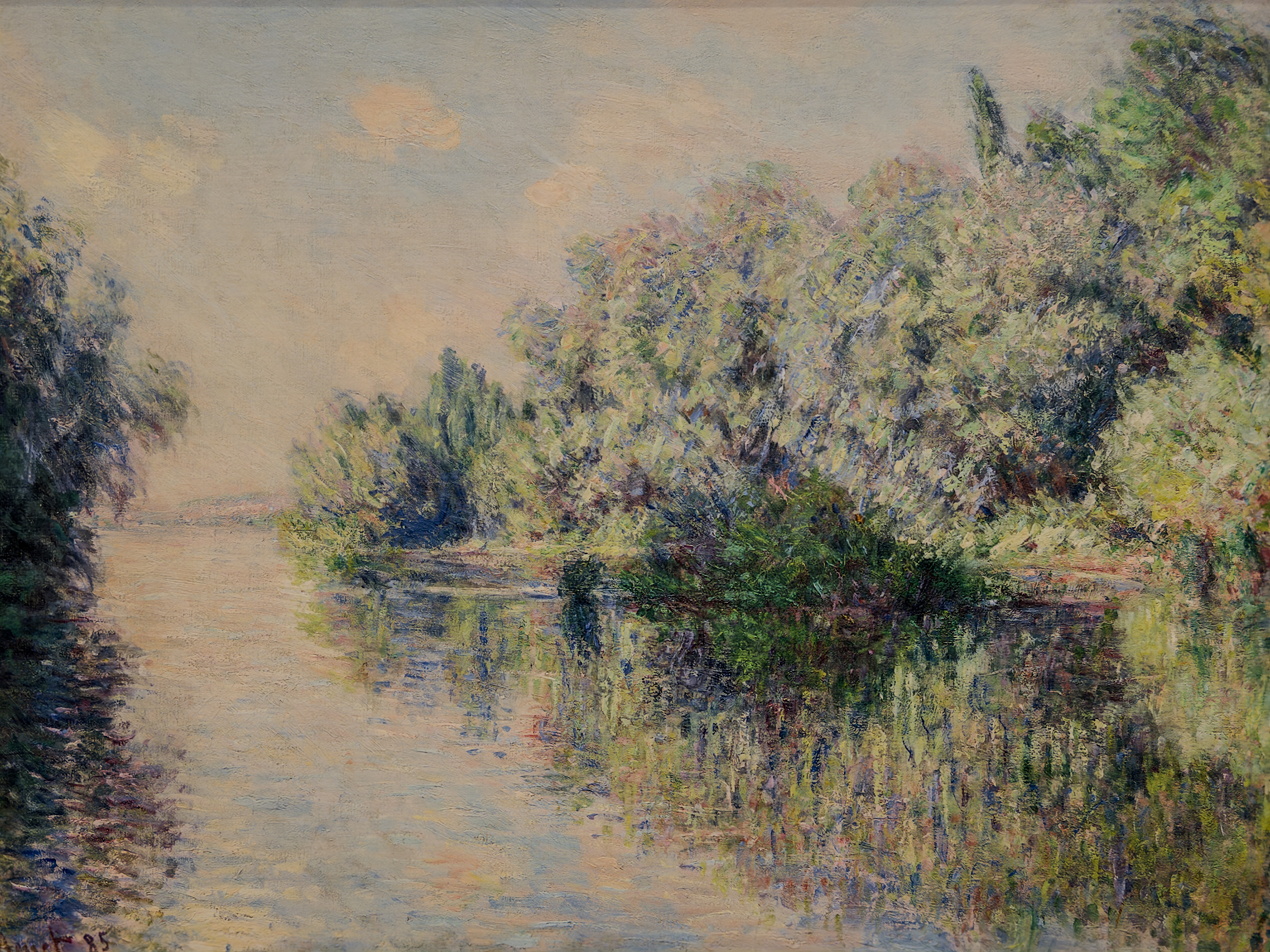
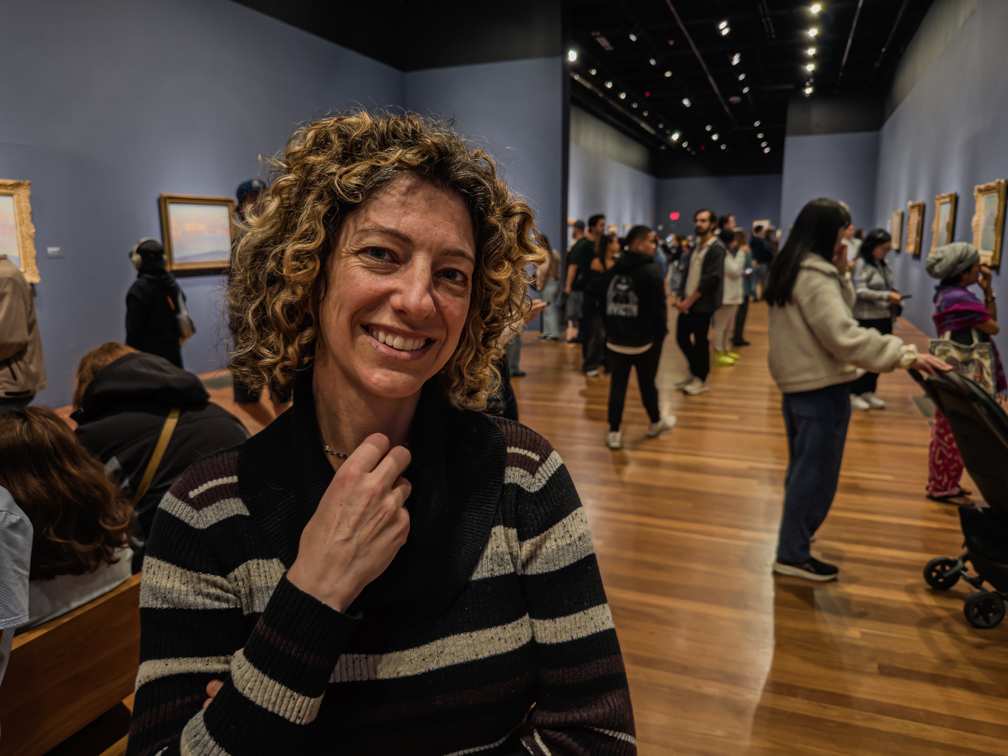
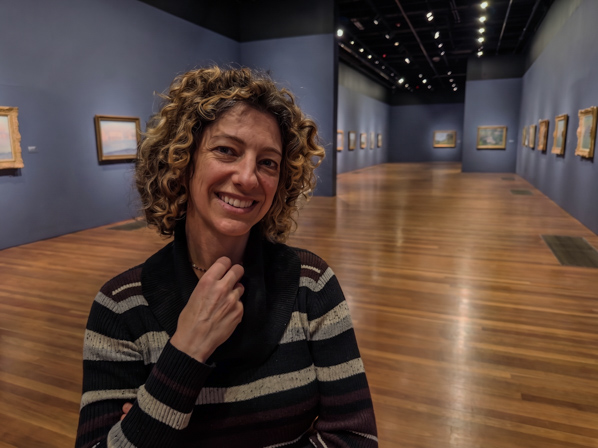
Let's think even further out of the box. Our Styles buttons let you make photographs look like hand-drawn illustrations. Could we go the other way? Check out these examples:
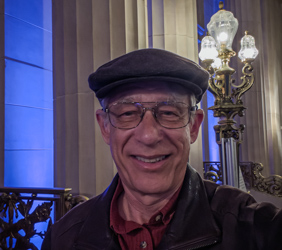
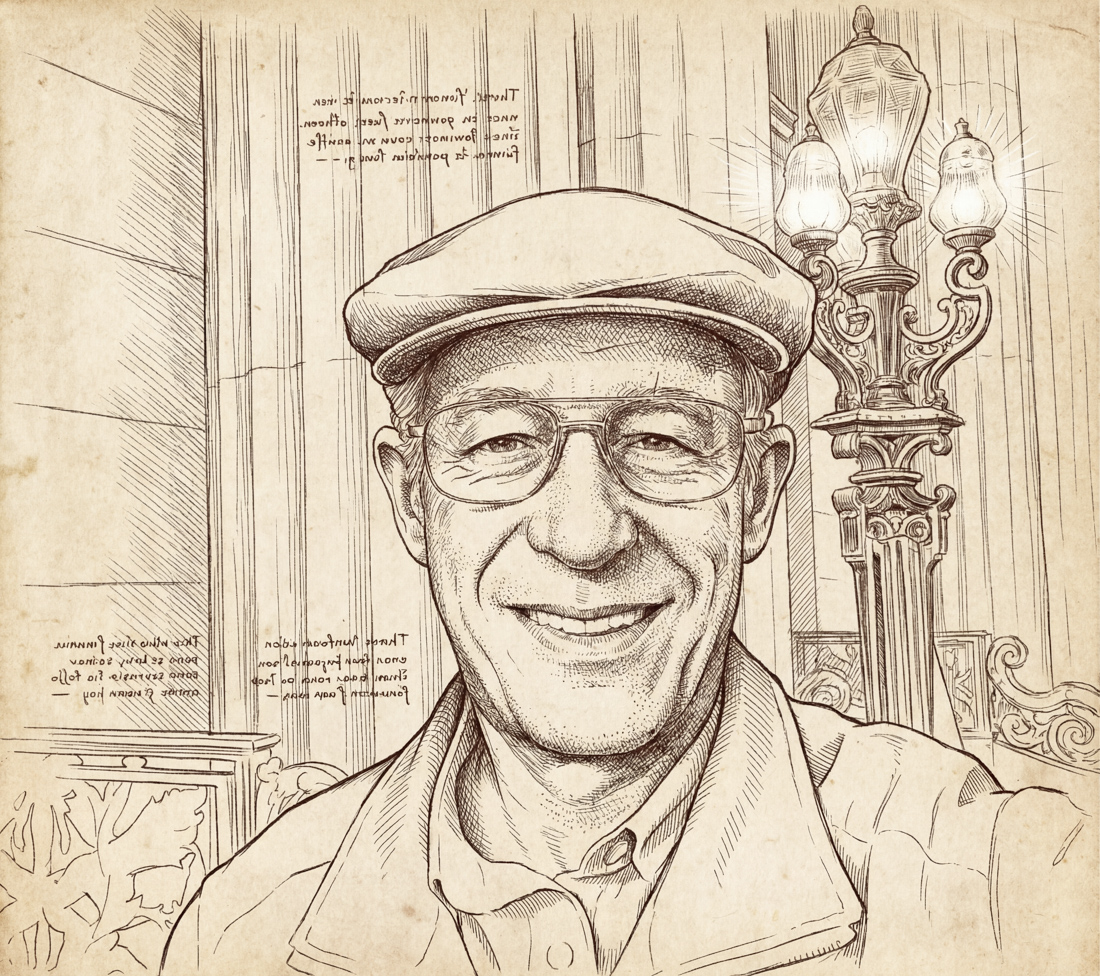
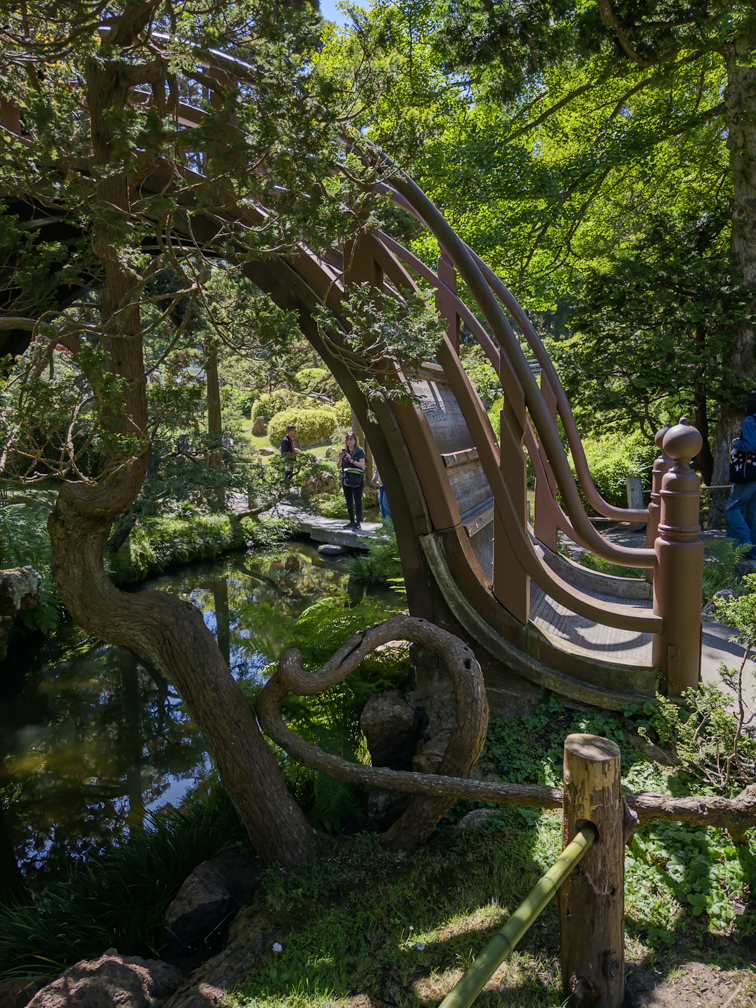
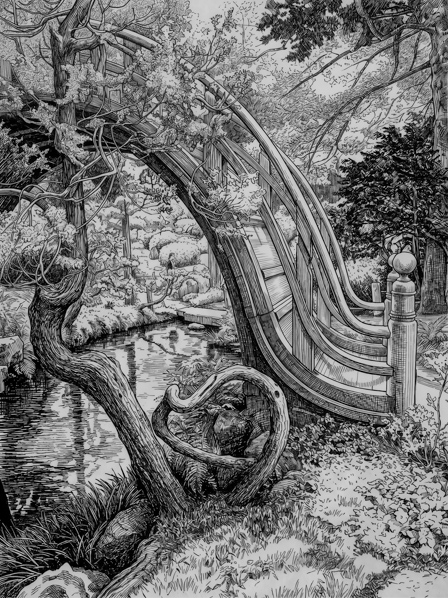
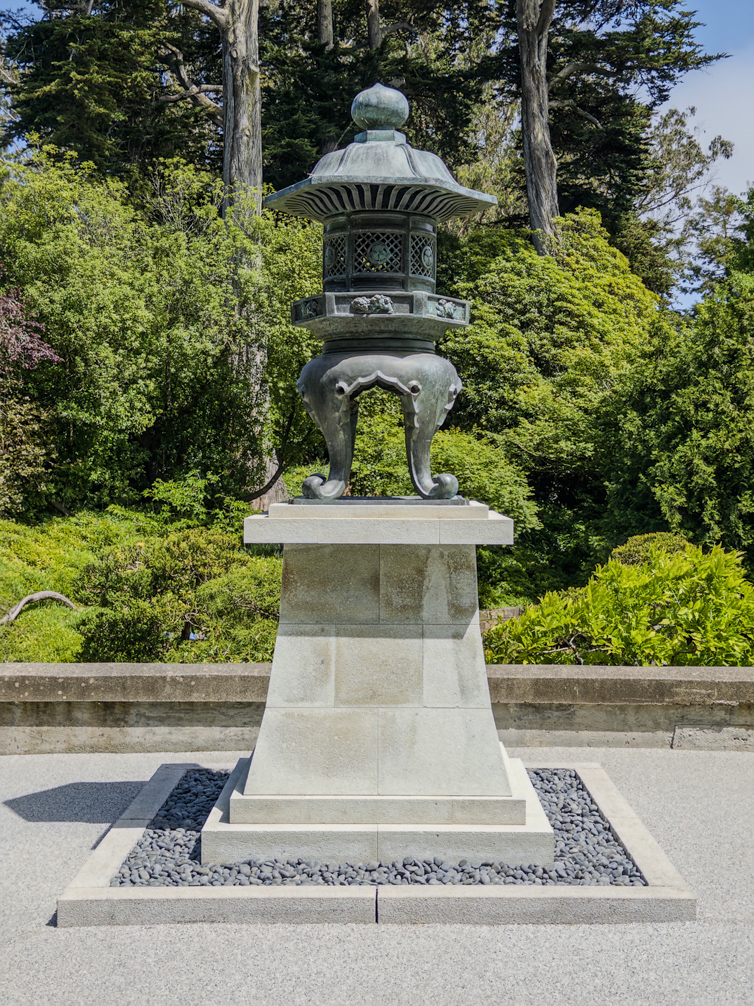
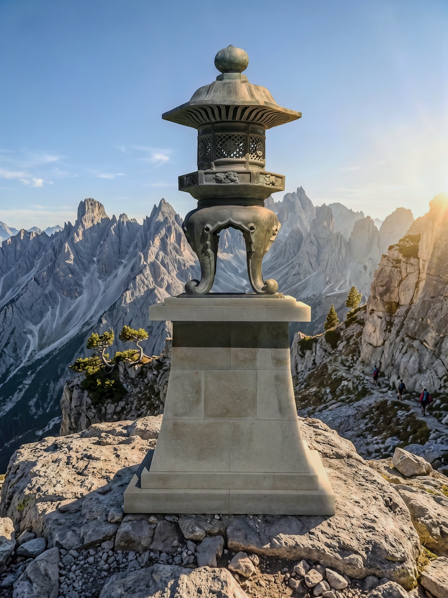
The prompt for the first row was "Pen and ink illustration in the style of Leonardo, on toned paper with white chalk". I wasn't expecting Leonardo's backwards Italian annotations, but the result is hilarious. (The writing is nonsense.) The second row used the "Pen and ink" button, followed by a Custom Edit to "Remove the fence in the foreground and the people in the background." The third row prompt was "Place the lantern on a mountain ledge, low sun from right." Note that even the holes in the lantern's grille changed color appropriately.
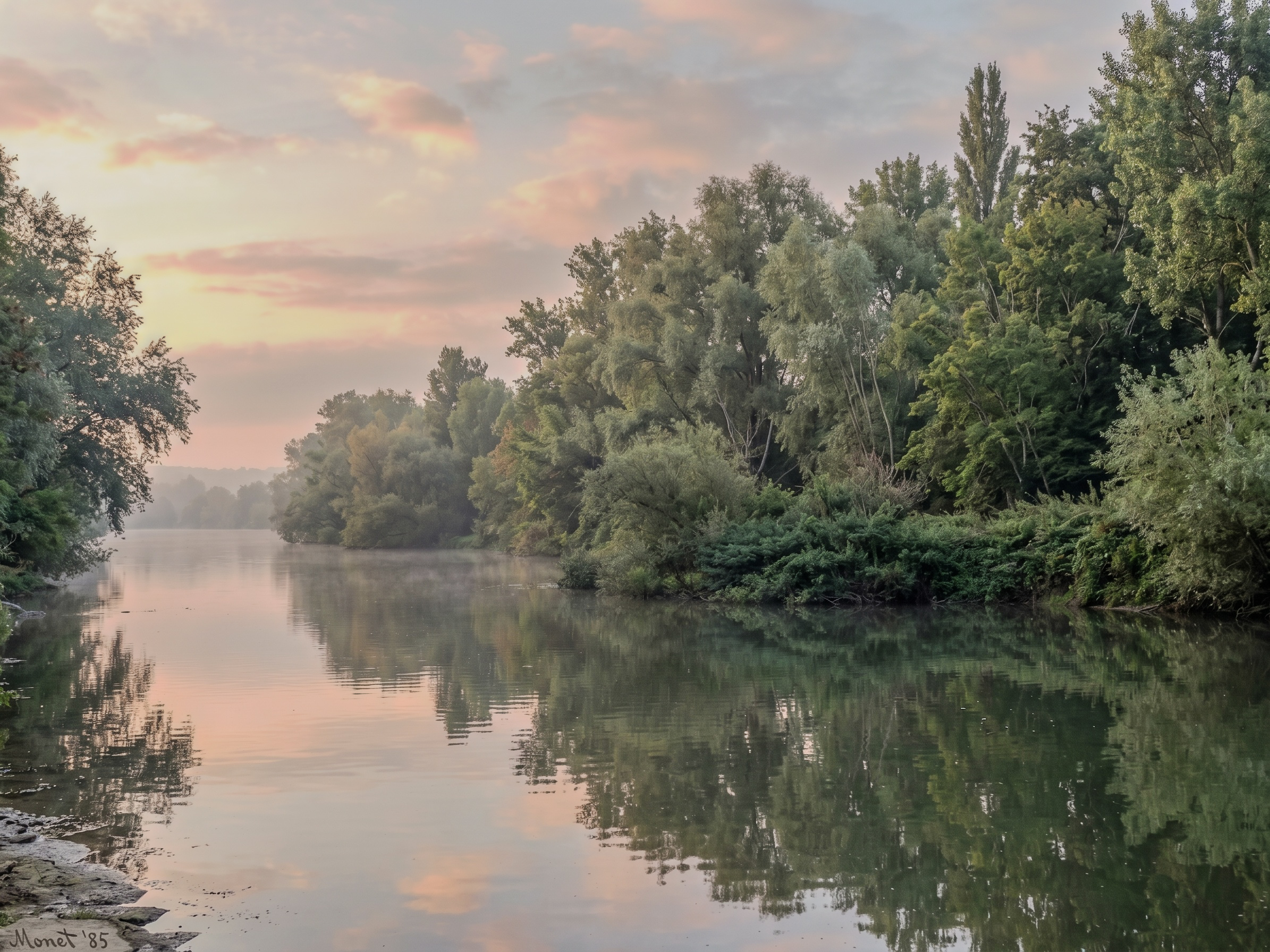
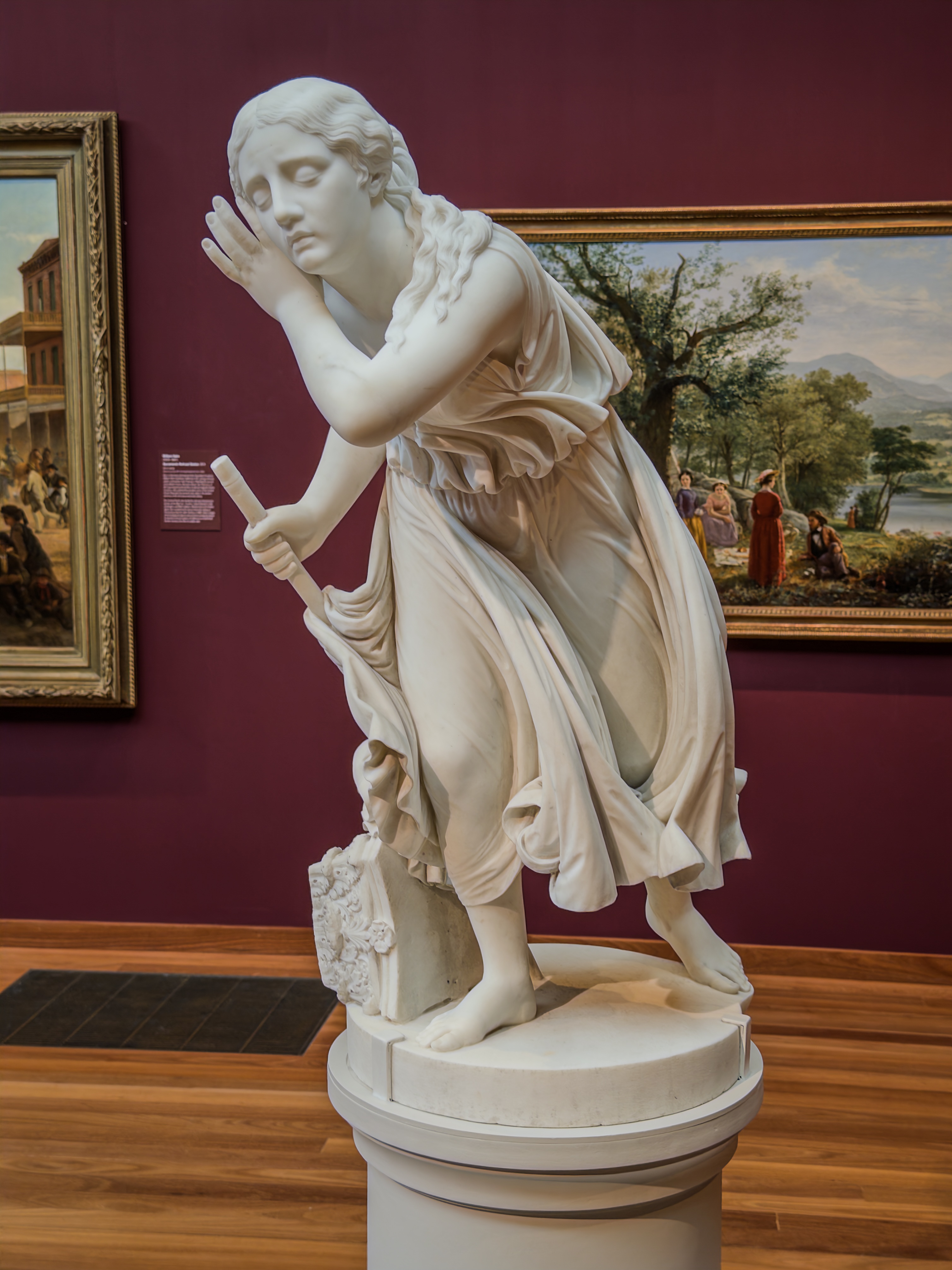
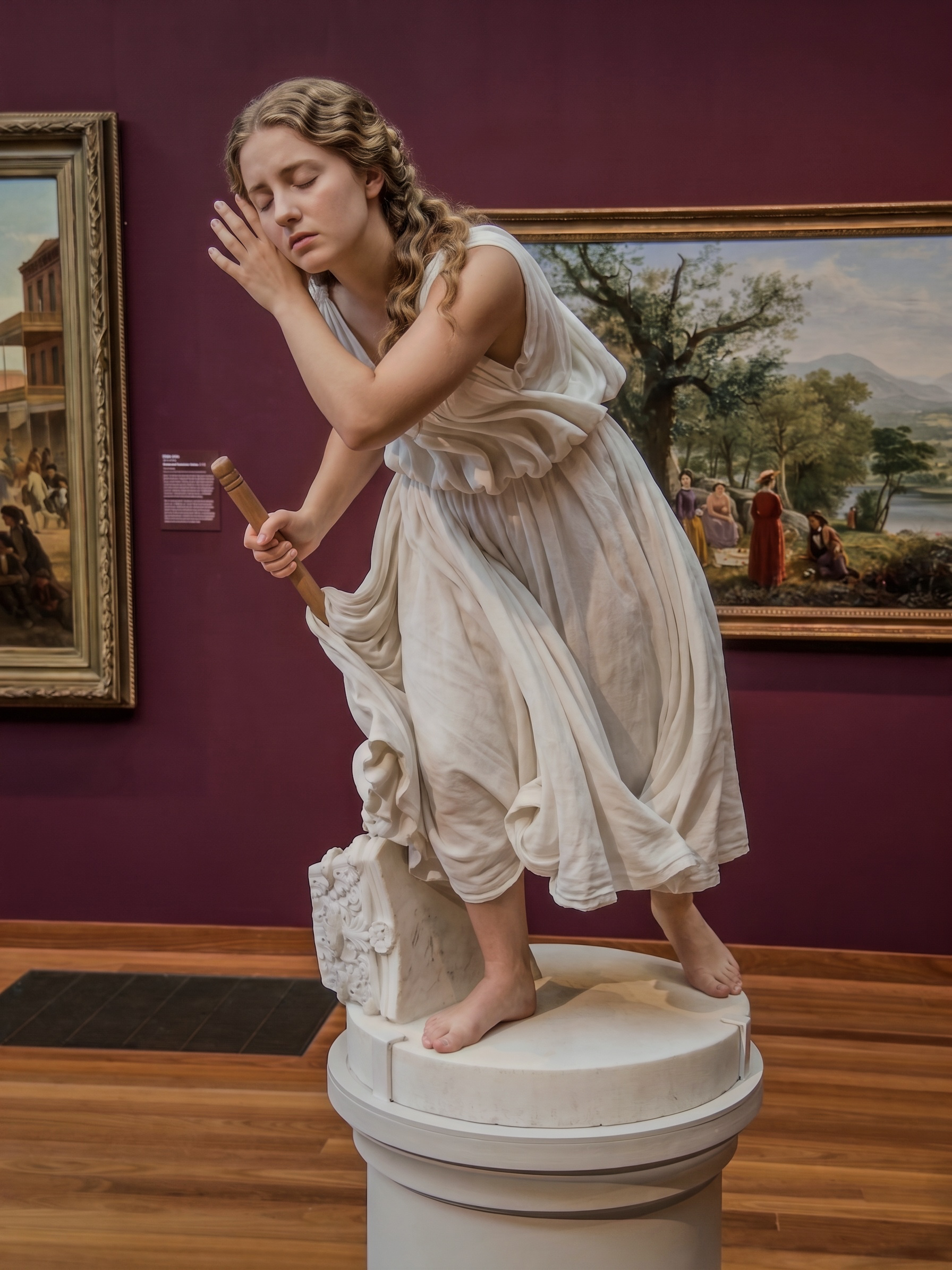
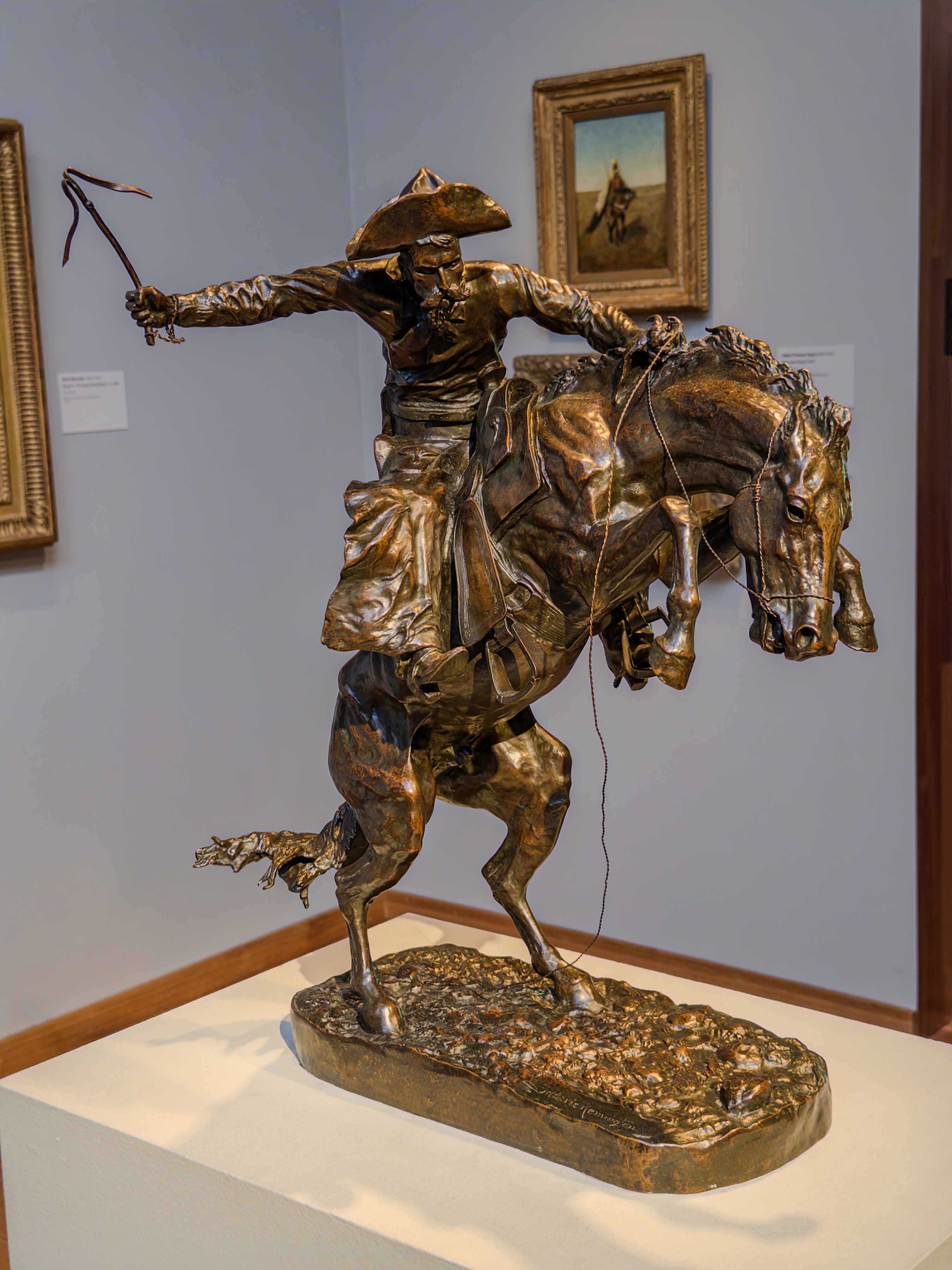
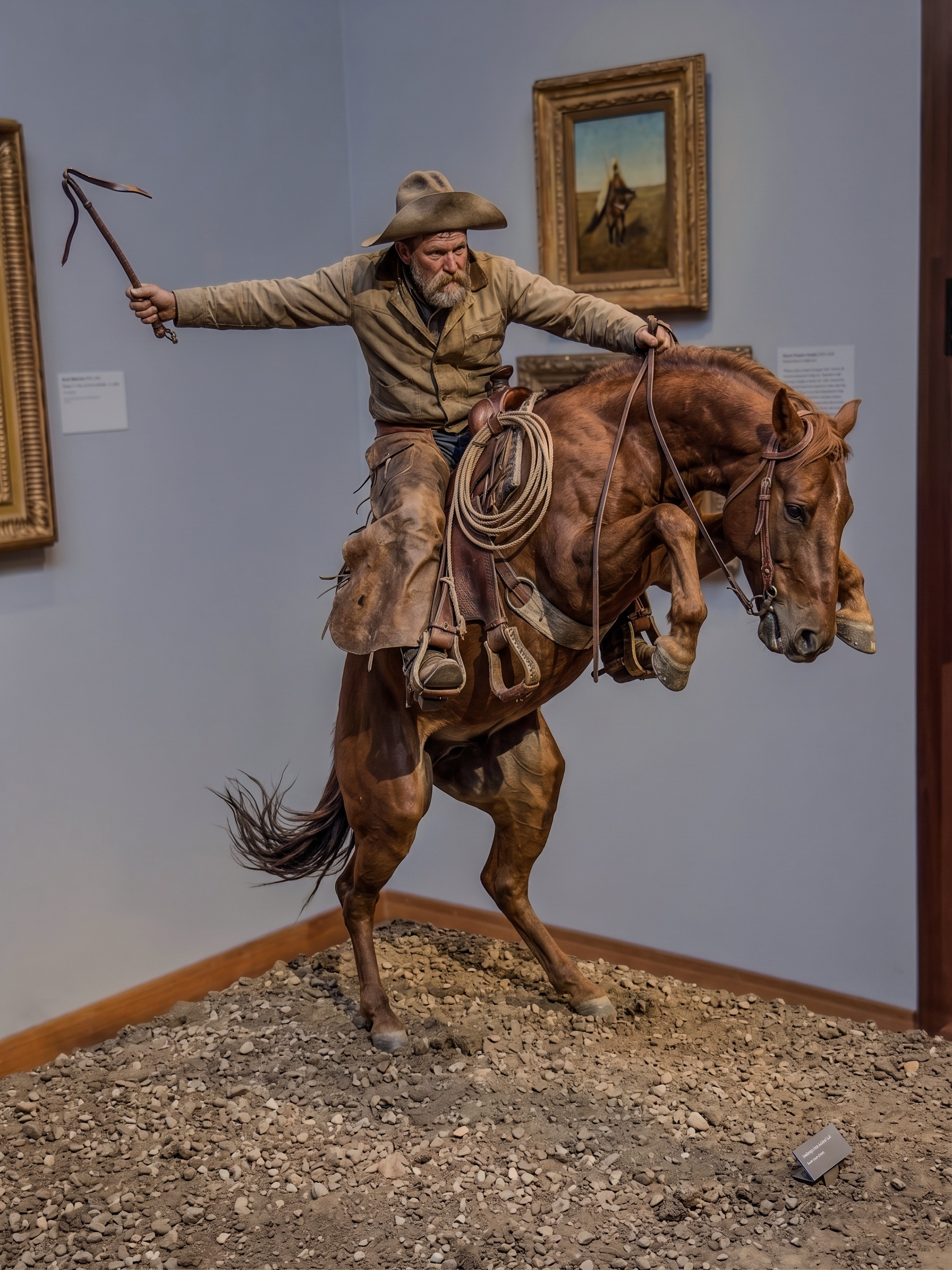
The conversion of a drawing, painting, or sculpture into a photograph is not only fun; it's also instructive. What could the artists have been looking at, which led to the piece they produced? There are other GenAI apps that can make inanimate objects come to life, or make still photographs move, but having this ability in a camera app - close to the shutter button - is somehow different. I can tell you that standing in the museum with my phone's screen showing a photograph while I'm looking at a bronze sculpture produced some astonished stares! Remember the movie "Night at the Museum," starring Ben Stiller, where the exhibits come to life?
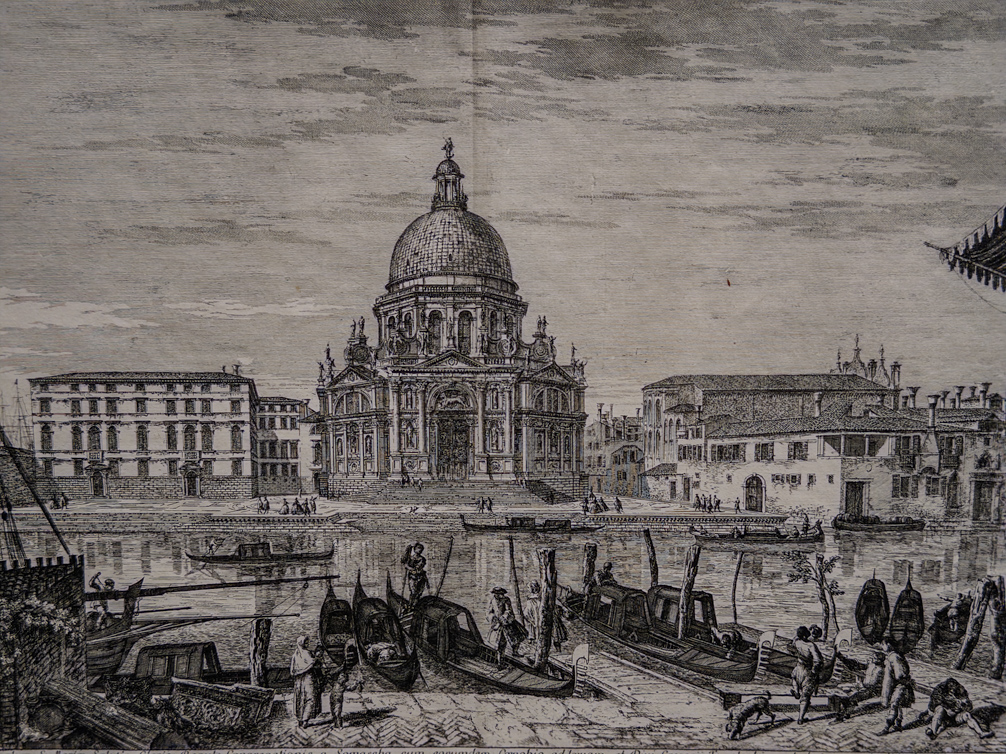
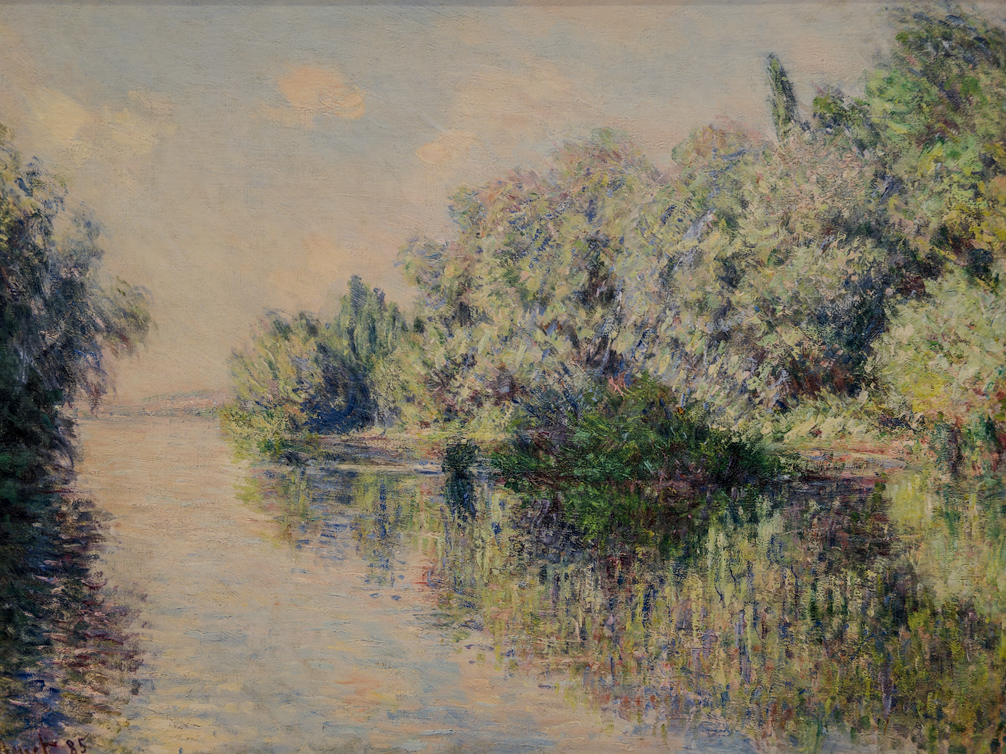
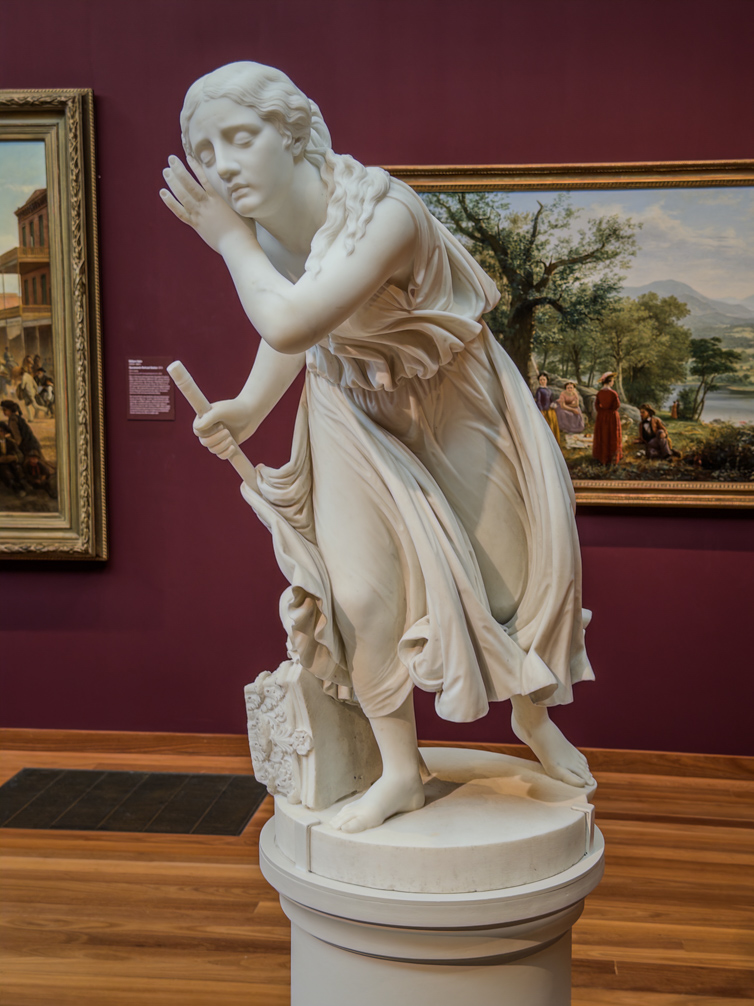
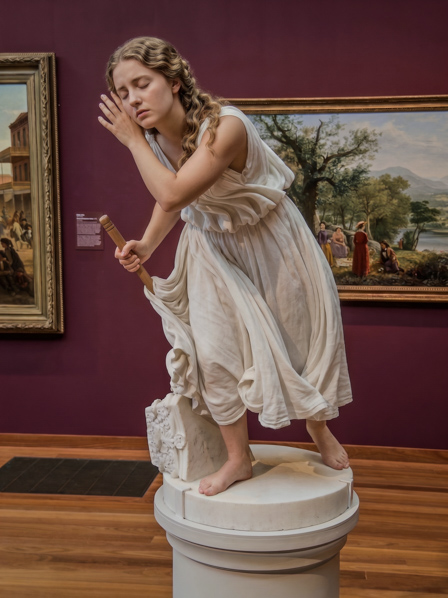
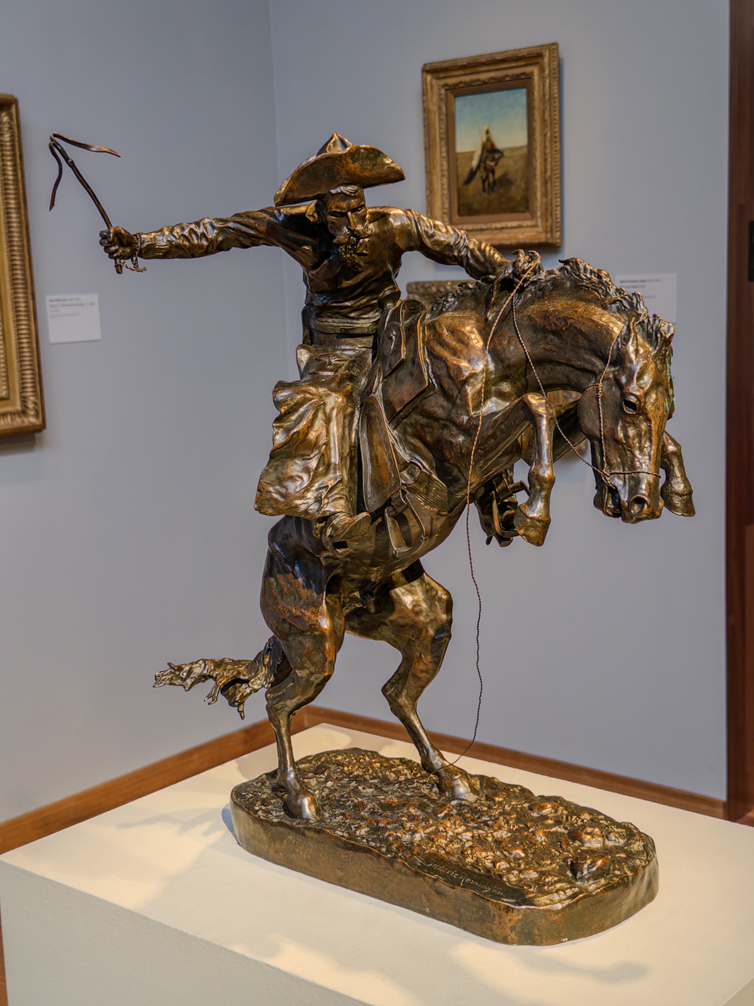
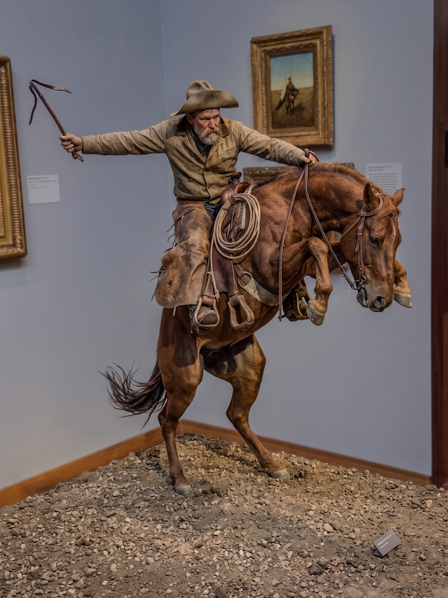
The first two rows use the Custom Edit prompt "Convert to a color photograph. Do not change the composition." The bottom row uses the prompt "Convert this statue into a photograph of a live person. Do not change the pose of the subject." Click on each image to view it larger.
(Top: Michele Marieschi, Santa Maria della Salute (1741), Fine Arts Museums of San Francisco, Achenbach Foundation for Graphic Arts. Middle: Claude Monet, The Seine near Giverny (1885), Frederic C. Hamilton Collection, Denver Art Museum. Bottom-left: Randolph Rogers, Nydia, the Blind Flower Girl of Pompeii (1853), Fine Arts Museums of San Francisco. Bottom-right: Frederic Remington, The Bronco Buster, Fine Arts Museums of San Francisco.)A peek under the hood
The GenAI model we’ll start with is Google’s Nano Banana, but we may switch models over time, or give different models to different users to help inform our approach. We may also use different models for different buttons, including one of Adobe's own Firefly models. Firefly's models are particularly good at removing distractors without touching the rest of the photo.
Since Nano Banana is a cloud-based model, you need to be connected to the internet (by wifi or cellular data) in order to use AI Playground. To save transmission and generation time, our result images are roughly 2k pixels on a side - lower than full resolution but large enough for sharing. If the generation fails due to server issues, we'll let you know, and you should try again. If you violate one of Nano Banana's AI safety filters, either because of your input image or your prompt, we'll let you know that as well. If you violate their safety standards too often, we'll remove you from the experiment.
One more thing. Current leading image-generation models output standard dynamic range (SDR) images, so using Nano Banana to edit the HDR photos captured by Indigo's camera app produces an image that looks disappointingly bland on the small screen, at least compared to the HDR photo. To address this limitation, we have built a custom ML model to post-process the standard dynamic range (SDR) images returned by Nano Banana, boosting them back to HDR. To improve the accuracy of this boosting, we use your captured HDR photo as guidance (but we don't train the model on your photos). The boosting isn't always accurate, especially if Nano Banana returned an image whose colors and tones are very different from your captured photograph, but it usually works well. Here's an example:
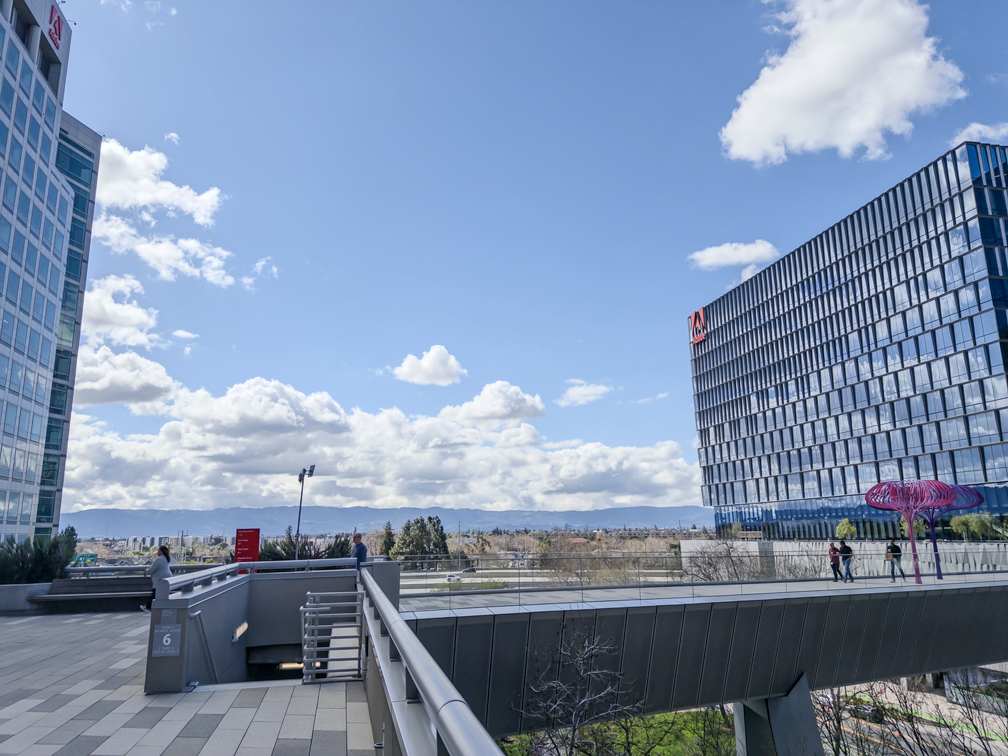
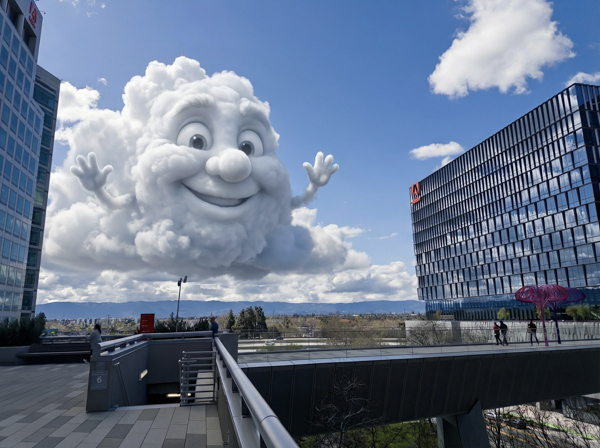
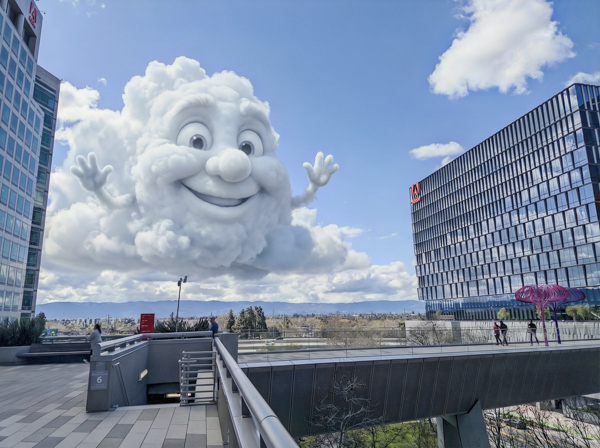
At left is an Indigo HDR photo. A Custom Edit was used to produce the fanciful result at center, but note that it is only SDR, i.e. the highlights are not brighter than the white background color of this web page. At right is the output of our ML model, boosting the brightness of the highlights with guidance from the original HDR photo. (You must view this web page on an HDR display to see the difference.)
What’s next?
This free public experiment is the beginning of a journey. I've already suggested some of our ongoing work, for example around giving advice on taking better photos. We are also expanding the set of buttons we offer, focusing on common editing needs and prompts that work reliably. The Nextcam team is also developing some exciting non-GenAI computational photography features that we plan to launch soon, including image quality improvements in low light. But there are some elephants in the generative editing room, so let's spend some time talking about them.
First, prompt-driven GenAI models are hard to control, except by changing the prompt and trying again. There are no sliders in these models. Inventing appropriate controls for generative editing, and incorporating them into easy-to-use workflows, is a challenge facing the entire imaging industry. Indigo is no exception, and we're constantly exploring, so stay tuned.
Second, GenAI models may change details of your photographs that you don't want changed, especially facial shape and expressions. The accepted strategy for reducing this so-called identity shift is through reference photos, either by submitting them to the GenAI model along with your photo, or by using them to train a helper model, which knows what your subject(s) look like in other photos and contexts. Curating reference photos introduces friction into the user experience, so it would be better if you didn't need to do it yourself. Fortunately, the same technology used to help you search your camera roll can also help you curate useful reference photos.
Third, GenAI is slow, and the best models are large, hence cloud-only. This requires constant connectivity, which may not be available when you're photographing condors in California or bison in the Badlands. The accepted solution is distillation, where large models are used to teach smaller models that can run on your phone. So far, smaller models have proven less capable; for example, they may not be able to re-render your photograph as an etching by Piranesi, because they've never heard of that artist. Work is ongoing in the AI research community.
Finally, a note about ethics. Like any GenAI model, the AI Playground can be used to remove a trash can or a wire fence, to stylize your skateboard trick or to make it look like you caught more air than you really did. We are working to attach metadata to AI-edited images produced from the AI Playground by using technology from Adobe's Content Authenticity Initiative. In addition, some of the GenAI models we use apply invisible watermarks to the images themselves, including Nano Banana. But in the end, whether the edits you apply are “fair” or “misleading" depend on what you do, who you share the images with, and how you present them. If I add motion blur to a photograph of me bicycling and send it to my children, they respond with “Cute, Dad.” They enjoy the game, but nobody is fooled. In the end, nothing can be implemented that reduces the importance of behaving responsibly.
Closing thoughts
Project Indigo's AI Playground was developed by Mohammad Haque, Boris Ajdin, Ruiming Cao, and Marc Levoy, with help from the entire Nextcam team. I hope this blog has conveyed our excitement about the Playground. I use it every day, typically right after capturing a photo, with the plan to share the photo right away. I find the Playground useful, and it often makes the difference between a throwaway snapshot and a sharable one. Most of all, it's fun.
Our expectation is that our AI Playground will prove popular. We can’t offer it for free forever, so we encourage readers of this blog to download the newest version of Project Indigo. If you are one of the lucky (randomly chosen) fraction of users, you’ll see a splash screen that welcomes you to the AI Playground experiment. You can decline to participate, of course, but why would you? The team and I use the Playground every day, and we're constantly finding fun new things to try with it, which our Custom Edit prompt allows.
As with all our technologies, we're always looking for feedback. A good place for this is in our public forum. We'd love to see the results you get with the AI Playground and we'd like to hear your suggestions for improving it. Check out this Lightroom album of additional examples and, if you're admitted to the experiment, try the Playground for yourself!